BackgroundServices: Beginner’s Guide
Summary
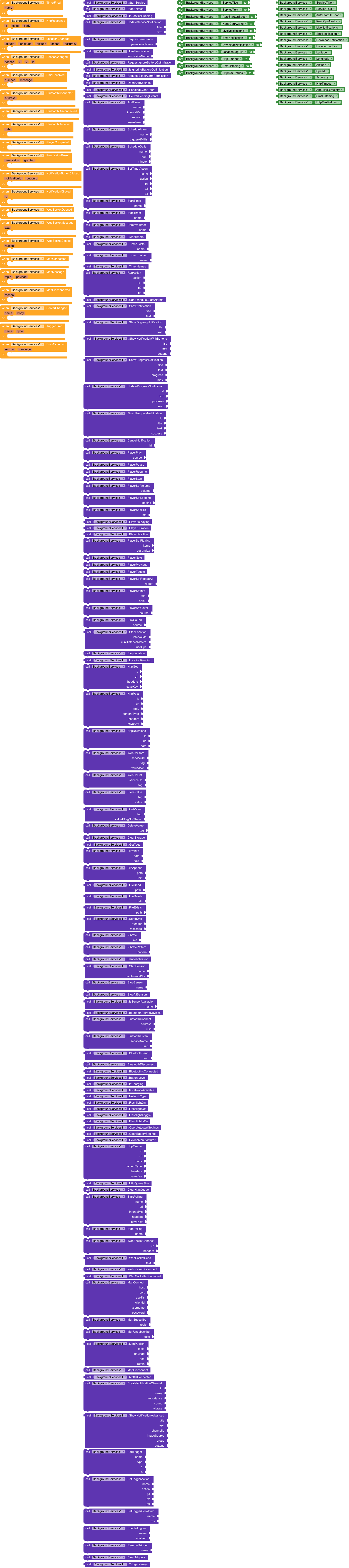
Purpose of the extension: keep everything that must work with the app closed and the screen locked inside an Android foreground service. The extension performs actions on a schedule and in response to events: sound, notifications, requests, SMS, data writing. Events that happen while the app is not running are saved and delivered the next time it is opened (DeliverPendingEvents).
Service
- Runs as a foreground service with a persistent notification and a “Stop” button.
- The notification shows the state: player, geolocation, number of timers, Bluetooth, sensors, WebSocket, MQTT, request queue, triggers, battery level.
- Can keep the CPU awake (
KeepCpuAwake). - Restarts if the app is swiped away from the recent apps list.
- Starts by itself after the phone reboots. On Android 15, a “Tap to continue” notification appears instead.
- When the time limit is reached on Android 15, it stops gracefully and asks to be started again.
- Declares service types for Android 14 and 15: dataSync, mediaPlayback, location.
- Helps with settings: permissions, battery optimization exemption, exact alarms, autostart screens for Xiaomi, Huawei, Oppo, Vivo, Samsung, OnePlus.
Timers and alarms
- Repeating and one-shot timers.
- Alarm at an exact time, alarm every day at a set time.
- Handler mode for short intervals and AlarmManager mode for working on a sleeping phone.
- Timers are restored after the service restarts and after a reboot.
- “In 5 min” and “Stop timer” buttons in the timer notification.
- When a timer fires, an action is performed:
- event;
- notification;
- music;
- short sound;
- stop the player;
- vibration;
- GET request;
- POST request;
- request into the retry queue;
- polling with change detection;
- SMS;
- flashlight (on, off, toggle);
- write a line to a file;
- write a value to storage;
- publish to MQTT;
- send via WebSocket;
- send via Bluetooth;
- start or stop another timer.
- Action texts can include substituted time, battery level, charging state, network type, coordinates, accuracy.
Player
- Music from a URL, file, asset, or
content://. - Playlist, next and previous track, pause, seek, volume.
- Repeat track and repeat whole list.
- Short sounds separate from the main player.
- Notification with title, artist, cover art, progress.
- Buttons: previous, pause/play, next, stop.
- The same buttons on the lock screen and on headphone buttons.
- Track-finished event.
Notifications
- Regular, persistent, with expanded text.
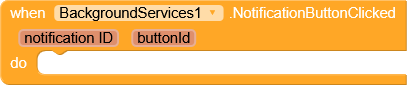
- With buttons: custom buttons (
id:Title) trigger theNotificationButtonClickedevent. NotificationClickedevent when the notification is tapped.- With a progress bar.
- With a large image.
- Custom channels with importance, sound, and vibration.
- Grouping by key.
- Notification for every incoming SMS.
- Cancel button for downloads.
Geolocation
- GPS and network, interval and minimum distance.
- Restored after the service restarts.
- All points written to a CSV file.
- Notification with coordinates, accuracy, speed, altitude, and “Map” and “Stop” buttons.
- Background mode when
ACCESS_BACKGROUND_LOCATIONis granted. - Zone enter and exit triggers.
Internet
- GET and POST with headers and saving the response.
- File downloads with a notification, percentage, and cancel.
- Retry queue: waits for the network, pauses from 15 s to 15 min, persists between launches.
- Polling by ETag, Last-Modified, or hash: event only on change.
- TinyWebDB: write and read.
- WebSocket: persistent connection, auto-reconnect, send and receive.
- MQTT 3.1.1: persistent connection, subscriptions with
+and#, publishing at QoS 0 and 1, auto-reconnect with subscription restore.
Data
- Key/value storage like TinyDB.
- Files: write, append, read, delete, check.
SMS
- Sending.
- Receiving with an event and a notification; works with the app closed.
Vibration
- Single, pattern, cancel.
Sensors
- Accelerometer, gyroscope, proximity, light, magnetometer, pressure, step counter.
- Event rate limiting.
- Notification with current values and a “Stop” button.
- Restored after a restart.
Bluetooth
- List of paired devices.
- Connect as a client and wait as a server.
- Send and receive text strings.
- “Connected” notification with a “Disconnect” button.
Device state
- Battery level, charging.
- Network availability and type: Wi-Fi, mobile, Ethernet.
Flashlight
- On, off, toggle.
- Notification with a “Turn off” button.
- Turned off when the service stops.
“When X, do Y” triggers
- Battery below or above a threshold.
- Charging started and stopped.
- Network appeared or lost.
- Screen on or off, unlock.
- Service start.
- Incoming SMS (with filter by sender and text).
- MQTT message (with filter by topic and text).
- WebSocket message.
- Bluetooth connected or disconnected.
- Entering and leaving a geofence.
- Sensor value above or below a threshold.
- Change in the content of a polled address.
- Timer firing.
- A trigger has a pause between firings, enable and disable, and the
TriggerFiredevent.
Events while the app is closed
- Up to 200 events are saved: timers, server responses, SMS, MQTT and WebSocket messages, Bluetooth, trigger firings, notification taps, errors.
- Delivered by the
DeliverPendingEventsblock.
What the extension does not do in the background
- Label, Button, TextBox, Image, Canvas, WebViewer, and dialogs: they need a screen. Their values can be stored and shown in a notification.
when ... doblocks on the screen don’t run without the app. Define background logic through timer and trigger actions.
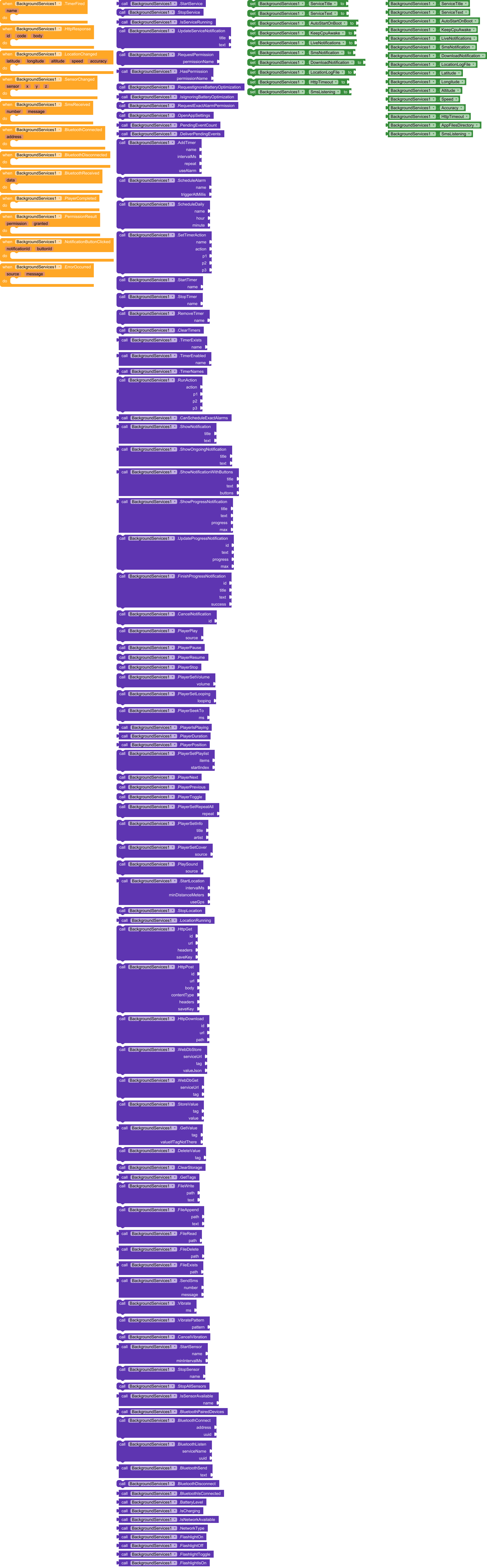
What is this extension?
Normally, when you close your app or lock your phone, Android stops everything your app is doing. This extension fixes that. It runs a service, a little helper that keeps working in the background. While the service runs, your timers, music, GPS and more keep going.
You will see a permanent notification while the service runs. That is normal. Android requires it.
The 4 golden rules
- Always start the service first. Use
StartServicebefore using any other block. - Ask for notification permission before starting the service. Otherwise the notification will not appear on Android 13 and newer.
- Some blocks have a plug on the left side. They give you an answer (true/false, a number, text). You cannot put them straight into a
doslot. Wrap them in “evaluate but ignore result” (from the Control drawer), or put the answer into a Label or a variable. - When something does not work, use the
ErrorOccurredevent. Show itsmessagein a Label. It tells you what went wrong.
Quick start (copy this first)
Put this in your app. Everything else builds on it.
when Screen1.Initialize
do  if  call HasPermission "POST_NOTIFICATIONS"
    then  evaluate but ignore result [ call StartService ]
    else  call RequestPermission "POST_NOTIFICATIONS"
    evaluate but ignore result [ call DeliverPendingEvents ]

when PermissionResult (permission, granted)
do  if  permission = "POST_NOTIFICATIONS"  and  granted = true
    then  evaluate but ignore result [ call StartService ]

when ErrorOccurred (source, message)
do  set Label1.Text to  join( source , ": " , message )
What this does:
- If the app already has permission, it starts the service.
- If not, it asks the user. When the user taps “Allow”, it starts the service.
DeliverPendingEventshands over anything that happened while the app was closed.- If anything fails, the error is shown on screen.
1. Service blocks
| Block | What it does |
|---|---|
StartService |
Starts the background service. Returns false if Android refused. |
StopService |
Stops the service and everything running in the background. Your timers are remembered, not deleted. |
IsServiceRunning |
true while the service is running. |
UpdateServiceNotification(title, text) |
Changes the text of the permanent notification. |
Designer properties:
ServiceTitleandServiceText: the text of the permanent notification.AutoStartOnBoot: start the service again after the phone restarts.KeepCpuAwake: stops the phone’s processor from sleeping. Useful for music streaming with the screen off, but uses more battery.
2. Permissions and battery
Android asks the user before allowing certain things. These blocks handle that.
| Block | What it does |
|---|---|
RequestPermission(name) |
Shows the “Allow?” popup. The answer arrives in the event PermissionResult. |
HasPermission(name) |
true if permission is already given. |
RequestIgnoreBatteryOptimization |
Opens a popup asking to let the app run freely in the background. |
IsIgnoringBatteryOptimization |
true if the app is already allowed to run freely. |
RequestExactAlarmPermission |
Opens the screen for exact alarms (Android 12+). |
CanScheduleExactAlarms |
true if exact alarms are allowed. |
OpenAppSettings |
Opens this app’s page in phone settings. |
Permission names you can use:
| Name | When you need it |
|---|---|
POST_NOTIFICATIONS |
Showing notifications (Android 13+) |
ACCESS_FINE_LOCATION |
Location. Ask for this first. |
ACCESS_BACKGROUND_LOCATION |
Location when the app is closed. Ask after fine location. |
SEND_SMS |
Sending SMS |
RECEIVE_SMS |
Receiving SMS |
BLUETOOTH_CONNECT |
Bluetooth (Android 12+) |
ACTIVITY_RECOGNITION |
Step counter |
Tip: Phones from Xiaomi, Samsung and Huawei kill background apps aggressively. Call RequestIgnoreBatteryOptimization once, and on Xiaomi also turn on “Autostart” and set battery to “No restrictions” in the phone settings.
3. Events saved while the app was closed
If a timer fires or an SMS arrives while your app is closed, the extension saves it in a queue.
| Block | What it does |
|---|---|
PendingEventCount |
How many events are waiting. |
DeliverPendingEvents |
Fires all waiting events now and empties the queue. |
Call DeliverPendingEvents in Screen.Initialize, after starting the service.
4. Timers and alarms
Making a timer is always 3 steps:
AddTimer: create itSetTimerAction: tell it what to doStartTimer: turn it on
Example: show a notification every minute
call AddTimer      name="t1"  intervalMs=60000  repeat=true  useAlarm=true
call SetTimerAction name="t1"  action="notify"  p1="Hello"  p2="One minute passed"  p3=""
call StartTimer    name="t1"
| Block | What it does |
|---|---|
AddTimer(name, intervalMs, repeat, useAlarm) |
Creates a timer. Does not start it. |
SetTimerAction(name, action, p1, p2, p3) |
Sets what happens when the timer fires, even with the app closed. |
StartTimer(name) / StopTimer(name) |
Turn it on or off. The timer stays saved. |
RemoveTimer(name) / ClearTimers |
Delete one timer or all timers. |
TimerExists(name) |
true if that timer exists. |
TimerEnabled(name) |
true if that timer is running now. |
TimerNames |
A list of all timer names. |
ScheduleAlarm(name, triggerAtMillis) |
One alarm at an exact time (milliseconds since 1970). |
ScheduleDaily(name, hour, minute) |
An alarm every day at that time (24-hour clock). |
RunAction(action, p1, p2, p3) |
Does an action right now, without any timer. |
What does useAlarm mean?
true: reliable even when the phone is asleep. Use it for intervals of one minute or more.false: good for short intervals (seconds), but only while the service is running.
Actions (type these exactly in the action field):
| action | p1 | p2 | p3 |
|---|---|---|---|
event |
Raises the event TimerFired(name) |
||
notify |
title | text | |
play |
music source | ||
sound |
sound source | ||
stop_player |
|||
vibrate |
milliseconds | ||
http_get |
url | save key | |
http_post |
url | body | save key |
sms |
phone number | text | |
flash_on, flash_off, flash_toggle |
|||
log |
file name | text | |
store |
key | value |
Magic words you can put inside texts. They are replaced automatically: {time} {millis} {battery} {charging} {network} {lat} {lon} {accuracy}
Example: a notification every day at 8:00 showing battery level
call ScheduleDaily      name="morning"  hour=8  minute=0
call SetTimerAction     name="morning"  action="notify"  p1="Good morning"  p2="Battery: {battery}%"  p3=""
5. Notifications
| Block | What it does |
|---|---|
ShowNotification(title, text) |
A normal notification. Gives you back an id. Long text can be expanded. |
ShowOngoingNotification(title, text) |
A notification the user cannot swipe away. Gives back an id. |
ShowNotificationWithButtons(title, text, buttons) |
A notification with up to 3 buttons. Gives back an id. |
ShowProgressNotification(title, text, progress, max) |
A notification with a progress bar. max = 0 makes an endless bar. |
UpdateProgressNotification(id, text, progress, max) |
Moves the progress bar. |
FinishProgressNotification(id, title, text, success) |
Replaces the bar with a final message. |
CancelNotification(id) |
Removes a notification. |
Buttons: how to write them. Use the pattern id:Label|id:Label.
call ShowNotificationWithButtons
     title   = "Delete file?"
     text    = "Are you sure?"
     buttons = "yes:Yes|no:No"
When the user taps a button:
when NotificationButtonClicked (notificationId, buttonId)
do  if buttonId = "yes"
    then  ...do something...
Progress bar example:
set global nid to  call ShowProgressNotification "Downloading" "0%" 0 100
call UpdateProgressNotification  id=global nid  text="50%"  progress=50  max=100
call FinishProgressNotification  id=global nid  title="Done"  text="File saved"  success=true
6. Music player
First, in the Designer, tick LiveNotifications. This gives you the player notification with cover, progress bar and buttons.
Play one song
when ButtonPlay.Click
do  call PlayerPlay  source = "https://site.com/song.mp3|Song Name|Artist"
The source can be:
- a web link (
https://...) - a file path on the phone
- a
content://address - a file name from your Assets
The |Song Name|Artist part is optional. It sets the text shown in the notification.
Play a playlist
when ButtonPlay.Click
do  call PlayerSetPlaylist
        items = make a list (
            "https://site.com/1.mp3|Song 1|Artist 1" ,
            "https://site.com/2.mp3|Song 2|Artist 2" ,
            "https://site.com/3.mp3|Song 3|Artist 3" )
        startIndex = 1
    call PlayerSetRepeatAll  true
The extension switches songs by itself. The notification shows Previous / Pause / Next buttons. You do not need to code them.
All player blocks
| Block | What it does |
|---|---|
PlayerPause / PlayerResume |
Pause and continue. |
PlayerToggle |
One button: pauses if playing, plays if paused. |
PlayerStop |
Stops the music. |
PlayerNext / PlayerPrevious |
Next and previous song. |
PlayerSetVolume(0 to 1) |
Volume. 0 is silent, 1 is full. |
PlayerSetLooping(true/false) |
Repeat the current song. |
PlayerSetRepeatAll(true/false) |
Start the playlist over after the last song. |
PlayerSeekTo(ms) |
Jump to a position (milliseconds). |
PlayerIsPlaying |
true if music is playing. |
PlayerDuration |
Song length in milliseconds. |
PlayerPosition |
Current position in milliseconds. |
PlayerSetInfo(title, artist) |
Changes the title and artist in the notification. |
PlayerSetCover(source) |
Sets the cover picture (link, file or Assets name). Empty text removes it. |
PlaySound(source) |
Plays a short sound on top of the music. |
Event: PlayerCompleted fires when a song finishes.
Progress bar on screen: use a Clock and every second set a Slider to PlayerPosition, with its max set to PlayerDuration.
Warning: many music download sites block direct links. If nothing plays, check ErrorOccurred, and test with a plain .mp3 link first.
7. Location (GPS)
Step by step:
- Ask for
ACCESS_FINE_LOCATION. - When
PermissionResultsays granted, ask forACCESS_BACKGROUND_LOCATION(needed so it works with the screen locked). - Call
StartLocation.
evaluate but ignore result [ call StartLocation intervalMs=10000 minDistanceMeters=5 useGps=true ]
This means: update every 10 seconds, but only if the phone moved at least 5 meters, and use GPS.
| Block | What it does |
|---|---|
StartLocation(intervalMs, minDistanceMeters, useGps) |
Starts tracking. Returns false if it failed. |
StopLocation |
Stops tracking. |
LocationRunning |
true if tracking is on. |
Event:
when LocationChanged (latitude, longitude, altitude, speed, accuracy)
do  set Label1.Text to  join( latitude , " , " , longitude )
Last known values (blocks): Latitude, Longitude, Altitude, Speed (meters per second), Accuracy (meters).
Property LocationLogFile: type a file name and every position is saved to it as time,lat,lon,accuracy. Leave it empty to turn this off.
8. Internet (HTTP)
| Block | What it does |
|---|---|
HttpGet(id, url, headers, saveKey) |
Asks a website for data. |
HttpPost(id, url, body, contentType, headers, saveKey) |
Sends text to a website. If contentType is empty, JSON is used. |
HttpDownload(id, url, path) |
Downloads a file. A short path like song.mp3 saves into the app folder. |
WebDbStore(serviceUrl, tag, valueJson) |
Saves data in TinyWebDB. |
WebDbGet(serviceUrl, tag) |
Reads data from TinyWebDB. |
id: any name you choose. It lets you tell answers apart.headers: one per line, likeName: value. Can be empty.saveKey: if you type a key, the answer is also saved in storage under that key. Can be empty.
Getting the answer:
when HttpResponse (id, code, body)
do  if  id = "weather"  and  code = 200
    then  set Label1.Text to body
code = 200usually means success.code = -1means the request failed, andbodycontains the error text.- For downloads,
bodyis the path of the saved file. - TinyWebDB answers use the ids
webdb.store:<tag>andwebdb.get:<tag>.
Properties:
HttpTimeout: how many milliseconds to wait before giving up.DownloadNotification: shows a progress bar with a Cancel button while downloading.
9. Saved values (like TinyDB)
Values stay saved even after the app is closed and opened again.
| Block | What it does |
|---|---|
StoreValue(tag, value) |
Save a value under a name. |
GetValue(tag, valueIfTagNotThere) |
Read it. If it does not exist, you get the second value. |
DeleteValue(tag) |
Delete one value. |
ClearStorage |
Delete everything. |
GetTags |
A list of all saved names. |
10. Files
| Block | What it does |
|---|---|
FileWrite(path, text) |
Writes a file. Replaces it if it exists. |
FileAppend(path, text) |
Adds text to the end of a file. |
FileRead(path) |
Reads a file. Gives empty text if it fails. |
FileDelete(path) |
Deletes a file. Returns true or false. |
FileExists(path) |
true if the file exists. |
A short path like notes.txt goes into the app folder. The block AppFilesDirectory tells you where that folder is.
11. SMS
- Send:
SendSms(number, message). You need theSEND_SMSpermission first. Returnstrueorfalse. - Receive: tick
SmsListeningand get theRECEIVE_SMSpermission. Then:
when SmsReceived (number, message)
do  set Label1.Text to  join( number , ": " , message )
This works even when the app is closed (the event waits in the queue).
SmsNotification(property): shows a notification for every incoming SMS.
12. Vibration
| Block | What it does |
|---|---|
Vibrate(ms) |
Vibrates for that many milliseconds. 500 is half a second. |
VibratePattern(pattern) |
A pattern like "0,300,200,300": wait 0, vibrate 300, wait 200, vibrate 300. |
CancelVibration |
Stops vibration. |
13. Sensors
Check first, then start:
if  call IsSensorAvailable "accelerometer"
then  evaluate but ignore result [ call StartSensor  name="accelerometer"  minIntervalMs=500 ]
Sensor names: accelerometer, gyroscope, proximity, light, magnetic, pressure, step_counter (needs ACTIVITY_RECOGNITION).
| Block | What it does |
|---|---|
StartSensor(name, minIntervalMs) |
Starts a sensor. minIntervalMs limits how often you get updates. |
StopSensor(name) |
Stops one sensor. |
StopAllSensors |
Stops all sensors. |
IsSensorAvailable(name) |
true if the phone has this sensor. |
Event:
when SensorChanged (sensor, x, y, z)
do  ...
Sensors with a single value (light, proximity, pressure, steps) put it in x only.
14. Bluetooth (sending text)
Good for Arduino, HC-05 and similar modules. Pair the device in phone settings first.
| Block | What it does |
|---|---|
BluetoothPairedDevices |
A list of paired devices, each as `Name |
BluetoothConnect(address, uuid) |
Connects to a device. Leave uuid empty for the normal serial profile. |
BluetoothListen(serviceName, uuid) |
Waits for another device to connect to you. |
BluetoothSend(text) |
Sends a line of text (a new line is added automatically). |
BluetoothDisconnect |
Closes the connection. |
BluetoothIsConnected |
true while connected. |
Events: BluetoothConnected(address), BluetoothDisconnected, BluetoothReceived(data).
Simple recipe:
- Ask for
BLUETOOTH_CONNECT. - Get
BluetoothPairedDevicesand let the user choose one. - Take the part after the
|(that is the address) and callBluetoothConnect(address, ""). - When
BluetoothConnectedfires, useBluetoothSend("hello").
15. Phone status and flashlight
| Block | What you get |
|---|---|
BatteryLevel |
Battery percent. |
IsCharging |
true if charging. |
IsNetworkAvailable |
true if there is internet. |
NetworkType |
wifi, mobile, ethernet, other or none. |
FlashlightOn / FlashlightOff / FlashlightToggle |
Turn the flashlight on, off, or switch it. |
FlashlightIsOn |
true if the flashlight is on. |
16. All Designer properties in one table
| Property | What it does |
|---|---|
ServiceTitle, ServiceText |
Text of the permanent notification. |
AutoStartOnBoot |
Restart the service after the phone reboots. |
KeepCpuAwake |
Keep the processor awake (more battery use). |
LiveNotifications |
Notifications with buttons for the player, location, flashlight, Bluetooth and sensors. |
SmsNotification |
Notification for every incoming SMS. |
DownloadNotification |
Progress notification with Cancel for downloads. |
LocationLogFile |
File where positions are saved. |
HttpTimeout |
How long to wait for websites (milliseconds). |
SmsListening |
Turn SMS receiving on or off. |
17. Troubleshooting
| Problem | What to check |
|---|---|
| No notification at all | 1. Is HasPermission("POST_NOTIFICATIONS") true? 2. Did you start the service after the user allowed it? 3. Use OpenAppSettings and make sure all notification categories are on. |
| Service gets killed | Use RequestIgnoreBatteryOptimization, turn on KeepCpuAwake, and on Xiaomi enable Autostart and “No restrictions”. |
| Timer does not fire when the phone sleeps | Use useAlarm = true, an interval of at least one minute, and check CanScheduleExactAlarms. |
| GPS stops when the screen is locked | You need both location permissions (fine and background), and the service must be running. |
| Music does not play | Check ErrorOccurred. Make sure StartService was called first, and that the link is a direct audio file. |
| Warning triangle in Kodular | A block with a left plug is lying loose. Wrap it in “evaluate but ignore result”. |
| Permission popup never appears | The permission may have been denied before. Use OpenAppSettings and allow it by hand. |
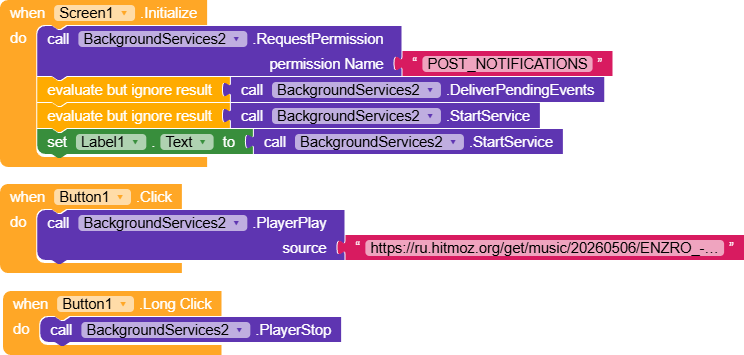
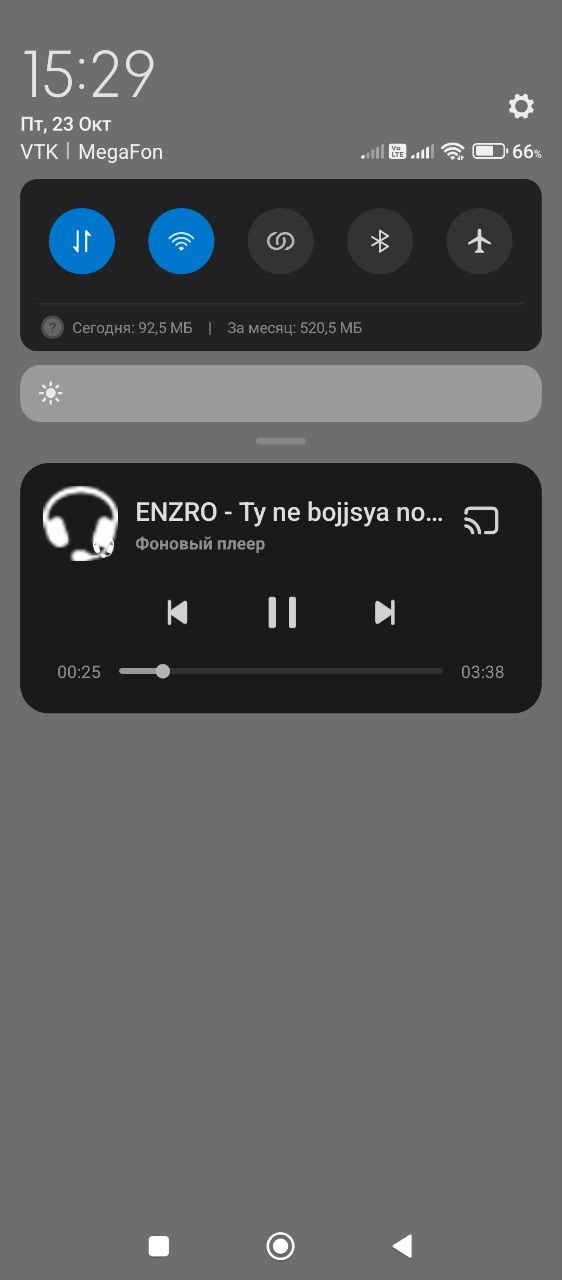
An example of a player running in the background.
**
com.backgroundservices.aix (123.8 KB)
com.backgroundservices v5.aix (223.5 KB)
com.backgroundservices_v6.aix (248.1 KB)
The extension was created with the help of:  FAST