Short description
Lektor is an App Inventor extension: a talking 3D head made of glowing green dots and thin lines. It reads any text aloud with lip sync, shows emotions, nods, looks around and reacts to touch.
Full description
Lektor brings a living virtual assistant to your app. The head is built from dots and lines, floats in 3D space, blinks, breathes and turns. While speaking it moves its lips and jaw in time with the words and gives a small nod on every word.
Speech comes from Android’s built-in text-to-speech engine, so no internet connection and no API keys are needed. Every language and voice installed on the device is available.
Features
- Text-to-speech with lip sync (two modes: estimated from the text, or driven by the real audio loudness).
- Phrase queue, pauses between phrases, saving speech to a WAV file.
- Emotions: neutral, happy, sad, angry, surprised.
- Gestures: a “yes” nod, a “no” shake, looking at a given point.
- Lively animation: breathing, blinking, random glances while silent.
- Touch control: drag the head with a finger and it springs back. A tap event is available.
- Choice of language, voice, speed, pitch and volume.
- Customizable look: color of dots and lines, dot size, glow, background, “falling code” effect.
- Battery friendly: frame rate limit when idle, animation stops in the background or when hidden.
- Audio focus: background music is ducked while the head speaks.
- Speech pauses automatically when the app goes to the background and resumes when it returns.
Requirements
- An Android text-to-speech engine (for example Google TTS) with the voice data for your language installed.
- Android 5.0 or newer is recommended. The
WordSpokenevent inLipSyncMode = 0needs Android 8.0 or newer.
Quick start
- Add the Lektor extension to your project and drag the component onto the screen (it is non-visible).
- Add a HorizontalArrangement or VerticalArrangement: it is the “frame” the head will live in.
- In
Screen.Initialize, call Attach with the arrangement, the width and the height in dp (0 means “fill the frame”). - Call Speak with your text, for example from a button click.
when Screen1.Initialize
    call Lektor1.Attach  target: HorizontalArrangement1  widthDp: 300  heightDp: 300

when Button1.Click
    call Lektor1.SetEmotion  name: "happy"
    call Lektor1.Speak  text: "Hello! I am Lektor."
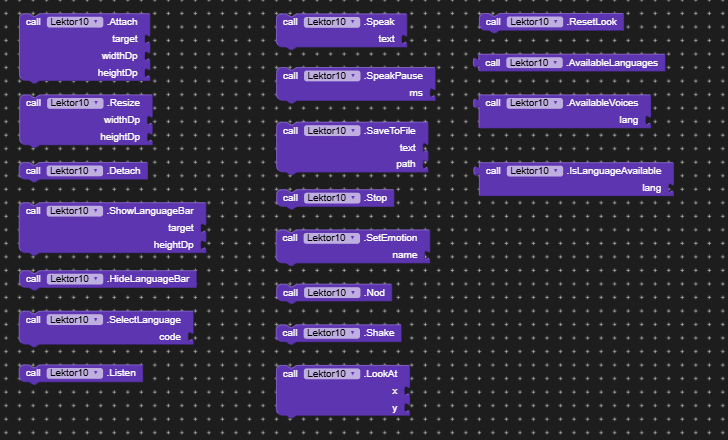
Blocks: methods
| Block | Parameters | What it does |
|---|---|---|
| Attach | target, widthDp, heightDp |
Puts the head into an arrangement and centers it. Size is in dp; 0 or less means “fill the whole frame”. The frame is painted with BackColor (if PaintContainer is on). Calling it again updates the size. |
| Resize | widthDp, heightDp |
Changes the size of the head after it was attached. |
| Detach | — | Removes the head from the frame. |
| Speak | text |
Reads the text aloud. If the head is already speaking, the current phrase and the queue are replaced. Empty text is ignored. |
| SpeakAdd | text |
Adds a phrase to the end of the queue; it is spoken after the current one. |
| SpeakPause | ms |
Adds a silent pause to the queue (0–60000 ms). |
| SaveToFile | text, path |
Saves the speech of the text to a WAV file. It is queued like SpeakAdd. A relative path goes to the app’s files folder, and .wav is added automatically. The full path arrives in the FileSaved event. |
| Stop | — | Stops speaking and clears the queue. If something was being spoken, SpeechFinished fires. |
| SetEmotion | name |
Changes the facial expression: neutral, happy, sad, angry, surprised. The change is smooth. An unknown name raises SpeechError. |
| Nod | — | Nods the head (“yes”). |
| Shake | — | Shakes the head (“no”). |
| LookAt | x, y |
Turns the head and the gaze to a point. x and y are from −1 to 1 (horizontal: left to right, vertical: down to up). Random glances are switched off. |
| ResetLook | — | Returns to free movement after LookAt. |
| AvailableLanguages | — | Returns a list of language codes supported by the engine (for example ru-RU, en-US). |
| AvailableVoices | lang |
Returns a list of voice names for a language (ru, en-US). An empty string returns all voices. A name can be assigned to the Voice property. |
| IsLanguageAvailable | lang |
Returns true if the language is available on this device. |
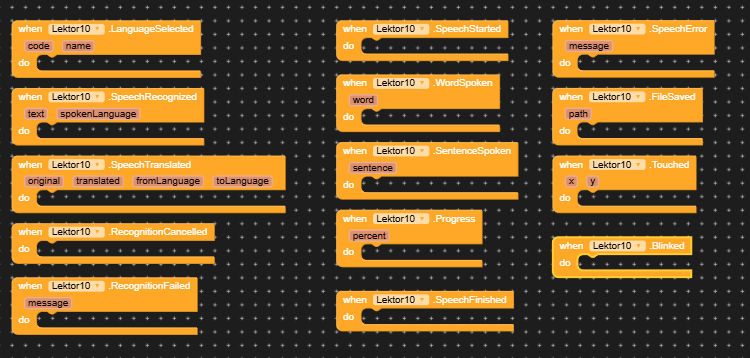
Blocks: events
| Event | Parameters | When it fires |
|---|---|---|
| SpeechStarted | — | The phrase started to sound. |
| WordSpoken | word |
A new word started (mode 0 needs Android 8+, mode 1 works everywhere). Handy for text highlighting. |
| SentenceSpoken | sentence |
A new sentence started. |
| Progress | percent |
Progress of the current phrase, 0–100. |
| SpeechFinished | — | The whole queue was spoken, or speech was stopped. |
| SpeechError | message |
Any error: missing language data, engine failure, unknown emotion name, broken head data, and so on. |
| FileSaved | path |
The speech was saved to a file; path is the full path. |
| Touched | x, y |
The head was tapped. Coordinates are 0 to 1 inside the head area. |
| Blinked | — | The head blinked. |
Blocks: properties
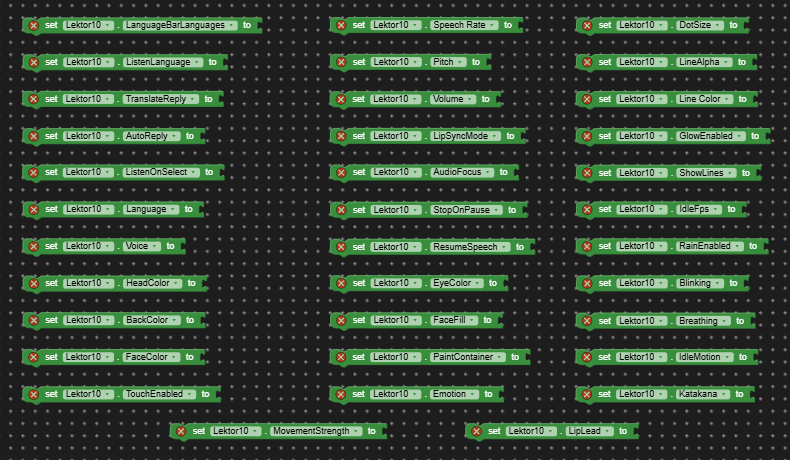
Properties can be set in the designer and/or with set / get blocks.
Speech
| Property | Default | Description |
|---|---|---|
| Language | ru |
Language code: ru, en, de, ru-RU, en-US, and so on. |
| Voice | empty | Voice name from AvailableVoices. Empty means the default voice. Blocks only. |
| SpeechRate | 1.0 | Speech speed, 0.1–4. |
| Pitch | 1.0 | Voice pitch, 0.1–4. |
| Volume | 1.0 | Speech volume, 0–1. |
| LipSyncMode | 0 | Lip sync mode. 0: estimated from the text, speech starts at once. 1: driven by the real loudness of the audio; speech starts with a small delay (a file is synthesized first) but the mouth is more accurate. Mode 1 falls back to 0 on failure. |
| LipLead | 70 | Lip lead in ms (−300…500). Increase it if the lips are late, decrease it if they are ahead of the voice. |
| IsSpeaking | — | Read-only: true while the head speaks. |
Behavior
| Property | Default | Description |
|---|---|---|
| AudioFocus | True | Duck other music while the head speaks. |
| StopOnPause | True | Stop speaking when the app goes to the background. |
| ResumeSpeech | True | When the app comes back, repeat the interrupted phrase and continue the queue. If off, the queue is dropped. |
| Emotion | neutral | Facial expression: neutral, happy, sad, angry, surprised. |
| TouchEnabled | True | The head can be turned with a finger; the Touched event works. |
| Blinking | True | Eye blinking. |
| Breathing | True | Light “breathing” of the head. |
| IdleMotion | True | Random glances while the head is silent. |
| MovementStrength | 1.0 | How strongly the head moves (0–3). 0: still, 2: strong. |
Look
| Property | Default | Description |
|---|---|---|
| HeadColor | green | Color of the dots. |
| BackColor | black | Background color. Transparent is allowed. |
| PaintContainer | True | Paint the frame (arrangement) with BackColor too. |
| FaceFill | False | Fill the face behind the dots with FaceColor. |
| FaceColor | black | Face fill color (used when FaceFill = True). |
| DotSize | 1.0 | Size of the dots (0.2–4). |
| LineColor | light gray | Color of the lines between the dots. |
| LineAlpha | 60 | Opacity of the lines, 0 (invisible) to 255. |
| ShowLines | True | Show the lines. |
| GlowEnabled | True | Glow around the dots. |
| RainEnabled | False | Faint falling code behind the head. |
| Katakana | False | Add katakana to the falling code. Turn it off if you see empty squares. |
| EyeColor | — | Not used; kept for compatibility with old projects. |
Performance
| Property | Default | Description |
|---|---|---|
| IdleFps | 30 | Frames per second when the head is calm (10–60). While speaking or moving it always runs at 60. A lower value saves battery. |
Examples
Queue with a pause
call Lektor1.Speak      text: "Good afternoon."
call Lektor1.SpeakPause ms: 800
call Lektor1.SpeakAdd   text: "How can I help you?"
Choosing a voice
set Lektor1.Language to "en-US"
set ListPicker1.Elements to call Lektor1.AvailableVoices lang: "en-US"
when ListPicker1.AfterPicking
    set Lektor1.Voice to ListPicker1.Selection
Highlight the word being read
when Lektor1.WordSpoken (word)
    set Label1.Text to get word
React to a tap
when Lektor1.Touched (x, y)
    call Lektor1.SetEmotion name: "surprised"
    call Lektor1.Speak text: "Oh!"
Save speech to a file
call Lektor1.SaveToFile text: "Hello, world" path: "hello.wav"
when Lektor1.FileSaved (path)
    set Label1.Text to get path
Tips
- If the head stays silent, check the
SpeechErrorevent: very often the voice data for the language is not downloaded (Android Settings → Language → Text-to-speech). - For the most accurate lip sync use
LipSyncMode = 1. For an instant start of speech keep0. - To make the head blend into your UI, set
BackColorto the screen color or make it transparent. - To save battery on screens where the head just idles, lower
IdleFpsto 15–20.
Price: $10
Contact via PM