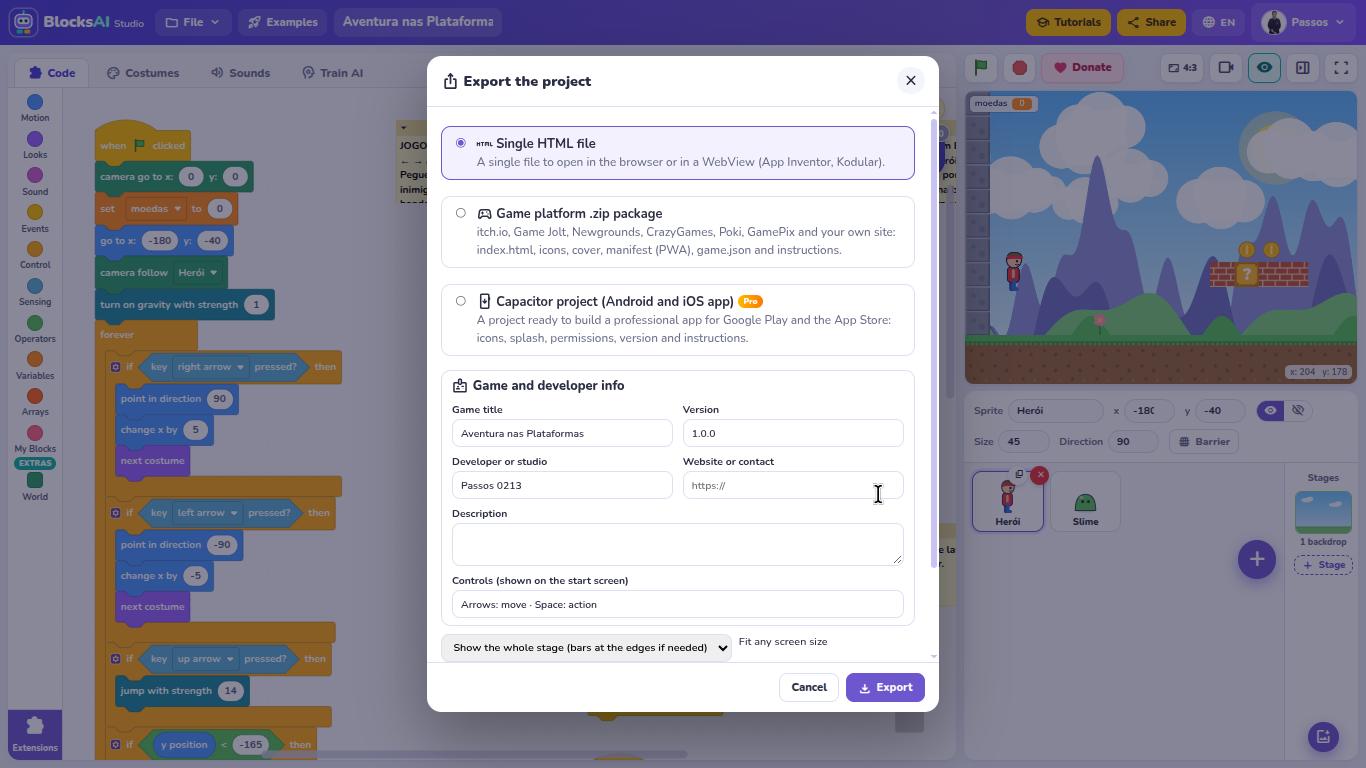
In this guide I’ll show how to create a simple game with blocks in BlocosIA Studio (https://blocosiastudio.app) and run it inside your app using the WebViewer component. You can export the game as a single .html file (works offline, AI models included), as a Capacitor project (native Android/iOS) or as a .blocosia project file. Here we’ll use the HTML option.
Step 1: Create the game
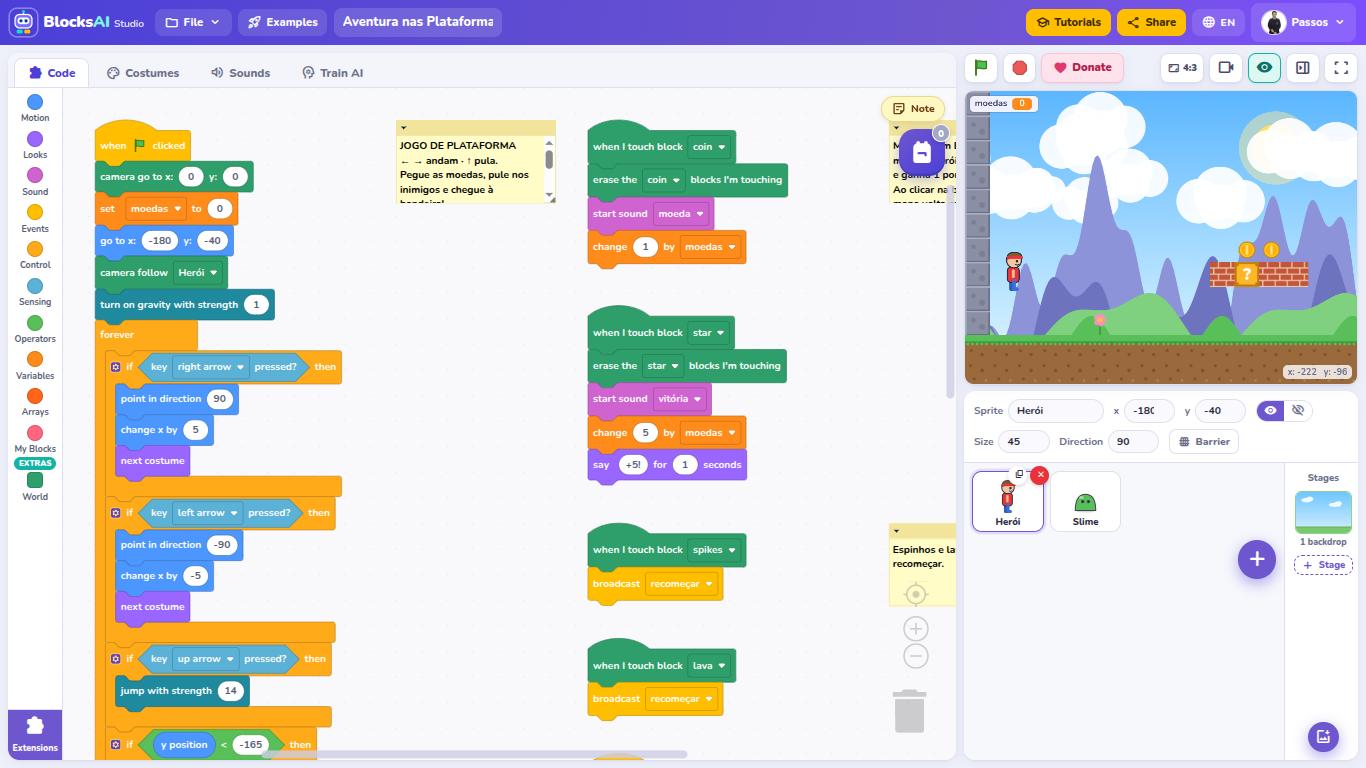
Open the editor, build your game with blocks and test it on the stage. Tip: use the “when flag clicked” and “when stop clicked” blocks to create your own Start/Stop buttons, since the exported game has no control bar.
Step 2: Adjust for mobile
In the stage format button, choose how the game fits the screen (contain, fill or stretch). On-screen touch controls are added automatically, only for the keys your game uses.
Step 3: Export
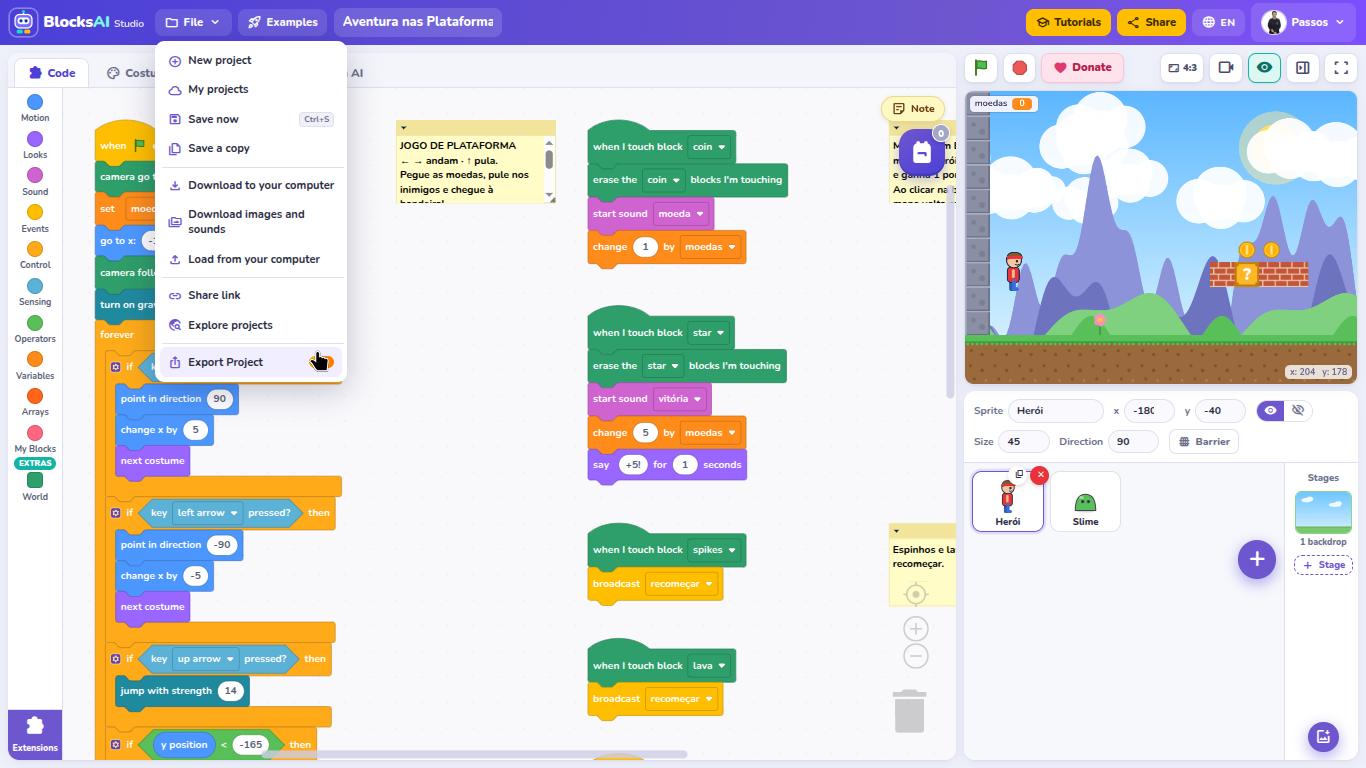
Go to File > Export Project > HTML. You’ll get one file, for example game.html.
Step 4: Add it to your app
- In the Designer, upload
game.htmlunder Media/Assets. - Add a WebViewer and set its size to Fill parent.
- Set HomeUrl to:
http://localhost/index.html - Optional: set the Screen to fullscreen and lock the orientation your game uses.

Step 5: Test
Build the APK and run it. Note: in the Companion, assets may load from a different path, so testing with the compiled APK is more reliable.
That’s it! Note: the HTML export is part of the Pro plan; all blocks and extensions are free. Questions are welcome below.