WebViewS — a full-featured browser component for Kodular
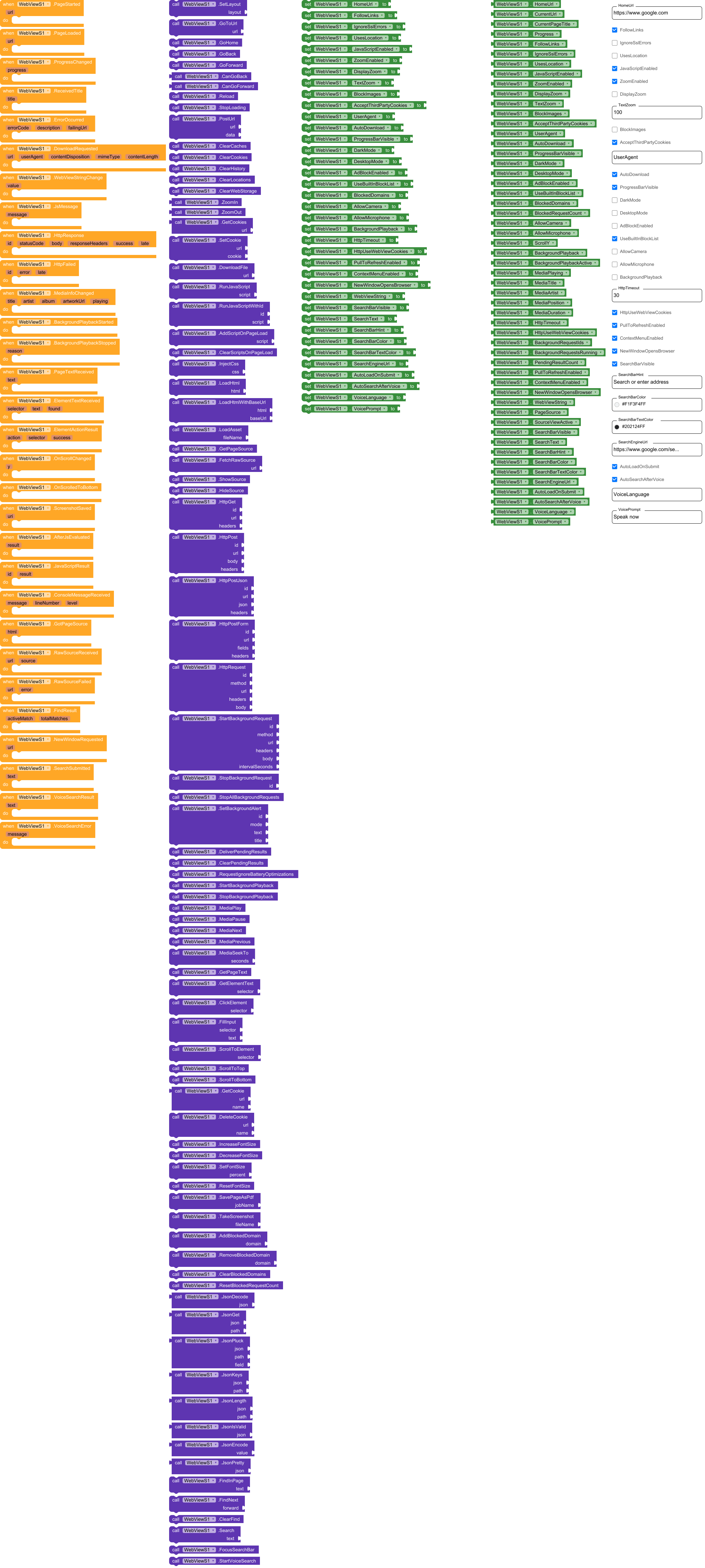
WebViewS is an extension that turns a plain WebView into a real mini-browser: address & search bar with voice input, pull-to-refresh, Chrome-style long-press menu, JavaScript tools, a built-in JSON decoder, cookie control, dark mode, desktop mode, ad blocking, page-text scraping, file upload with camera, screenshots, PDF export and much more — all through simple blocks, no JavaScript knowledge required.
Package: com.webviews · Category: Extension (non-visible component) · Platform: Android
 Feature overview
|
|
 Search / address bar Search / address bar |
Type a URL or a search query. Mic button for voice search. Colors, hint and visibility are customizable. |
 Pull to refresh Pull to refresh |
Swipe down at the top of a page to reload it (like Chrome). |
 Long-press menu Long-press menu |
Long-press a link, image, video or audio → open, open in new window, download, copy address, share. Long-press on text → normal Android text selection with Copy. |
 JavaScript tools JavaScript tools |
Run JS, inject CSS, run scripts on every page load, two-way communication page ⇄ app. |
 JSON blocks JSON blocks |
JsonDecode, JsonGet, JsonPluck… turn JSON into lists and dictionaries in one block. |
 No-JS page control No-JS page control |
ClickElement, FillInput, GetElementText, ScrollToElement, GetPageText using plain CSS selectors. |
 Cookies Cookies |
Read, set, delete one cookie or clear all — perfect for login flows. |
 Dark mode / Dark mode /  Desktop mode / Desktop mode /  Font size Font size |
One property or one block each. |
 Ad & tracker blocker Ad & tracker blocker |
Built-in domain list + your own list. |
 Screenshot & PDF Screenshot & PDF |
Save the visible page as PNG or print/save it as PDF. |
 File upload, camera, microphone File upload, camera, microphone |
<input type="file"> works, camera capture works, web pages can use camera/mic (opt-in). |
 Downloads Downloads |
Files go to the Download folder with a system notification. |
 View source View source |
Show the page source inside the component, get DOM or raw HTML. |
 Scroll events Scroll events |
OnScrollChanged and OnScrolledToBottom for infinite-scroll style loading. |
 Installation & setup (step by step)
- Import the
.aix file into your Kodular project (Extensions → Import extension).
- In the Designer, add a VerticalArrangement (or HorizontalArrangement) to your screen.
Set its Width and Height to Fill parent. This is the place where the browser will appear.
- Add WebViewS from the Extension palette. It is a non-visible component — it shows up under the phone screen, not inside it.
- Open the Blocks editor and connect them once, in
Screen.Initialize:
when Screen1.Initialize
do  call WebViewS1.SetLayout  layout: VerticalArrangement1
- Done! The component loads its HomeUrl automatically. To open another page:
call WebViewS1.GoToUrl url: "example.com".
 Why a non-visible component? Kodular cannot preview custom visible components without a mock file, so WebViewS is attached to any arrangement via
 SetLayout. Bonus: you control size and visibility through the arrangement itself (e.g. VerticalArrangement1.Visible).
Permissions used
INTERNET, ACCESS_NETWORK_STATE, ACCESS_FINE_LOCATION (only if UsesLocation is on), RECORD_AUDIO (voice search / microphone), CAMERA (camera access), MODIFY_AUDIO_SETTINGS, READ/WRITE_EXTERNAL_STORAGE (downloads). Dangerous permissions are requested from the user at runtime, only when they are really needed.
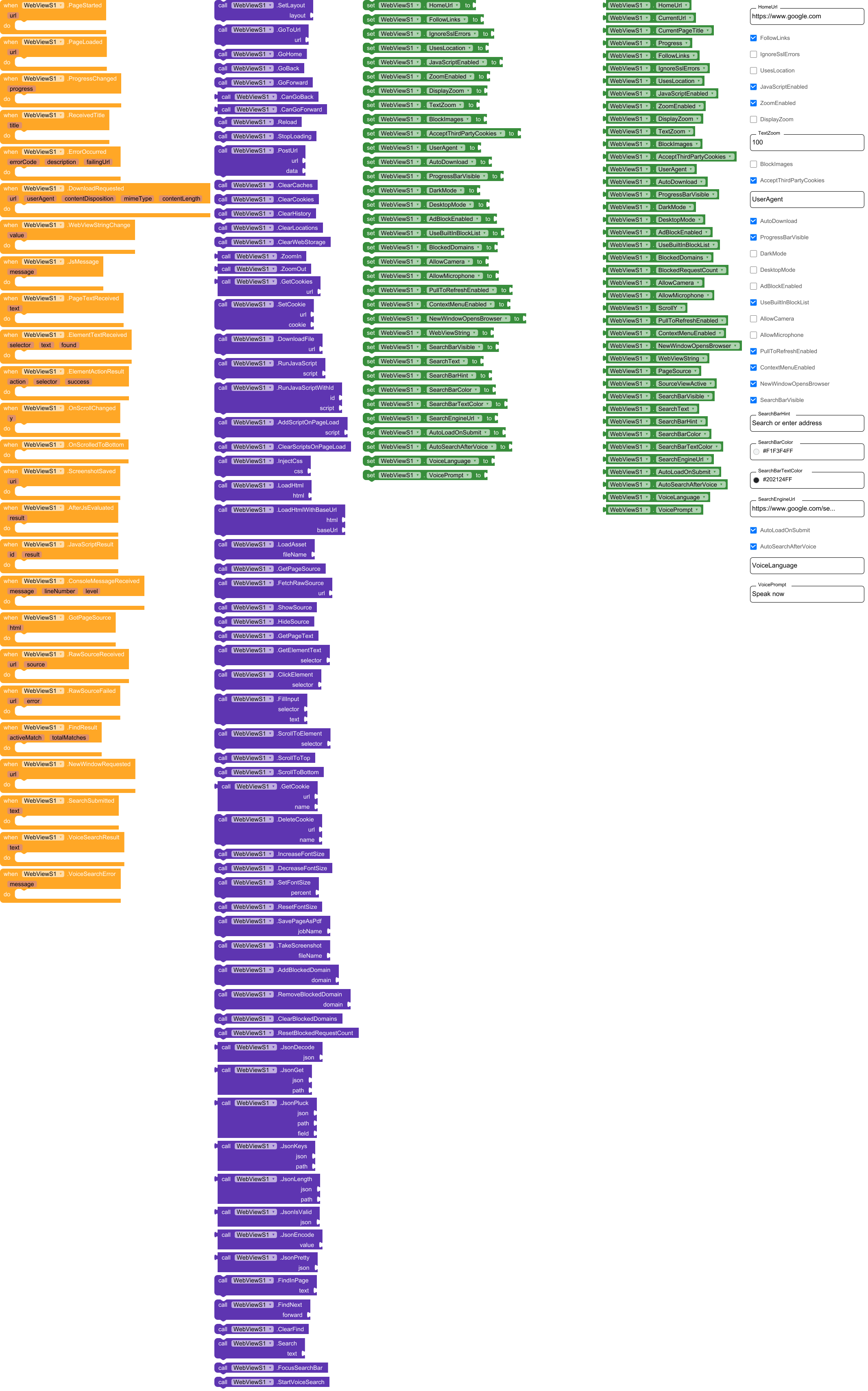
 Designer properties
Set in the Designer, or change at runtime with the set WebViewS1.Property blocks.
Page & navigation
| Property |
Default |
Description |
| HomeUrl |
https://www.google.com |
Page loaded at start and by GoHome. |
| FollowLinks |
true |
If false, links inside the page are not followed (the page cannot navigate away by tapping links). |
| IgnoreSslErrors |
false |
If true, pages with invalid SSL certificates still load. Use only for testing. |
| JavaScriptEnabled |
true |
Turns JavaScript in pages on/off. Many blocks (JSON from JS, element tools, long-press menu for video, dark mode…) need JS on. |
| UsesLocation |
false |
Allows pages to use the device location (navigator.geolocation). |
| AcceptThirdPartyCookies |
true |
Allow or block third-party cookies. |
| BlockImages |
false |
Don’t load images from the network (saves data). |
| UserAgent |
(empty) |
Custom user-agent. Empty = default. |
| DesktopMode |
false |
Desktop version of sites: desktop user-agent + wide viewport. The current page reloads. |
| DarkMode |
false |
Dark theme for web pages (page colors are inverted; images/videos stay normal). |
Zoom & text
| Property |
Default |
Description |
| ZoomEnabled |
true |
Pinch-to-zoom on/off. |
| DisplayZoom |
false |
Show on-screen zoom (+/−) buttons. |
| TextZoom |
100 |
Font size of pages in percent (100 = normal). |
Downloads, pull-to-refresh & long-press menu
| Property |
Default |
Description |
| AutoDownload |
true |
true: files are downloaded automatically to the Download folder. false: nothing is downloaded, only the DownloadRequested event fires — you decide. |
| PullToRefreshEnabled |
true |
Swipe down at the top of the page to reload. |
| ContextMenuEnabled |
true |
Long-press menu for links, images, video and audio. |
| NewWindowOpensBrowser |
true |
“Open in new window” opens the phone’s browser. If false, only NewWindowRequested is raised so you can open the address in your own screen. |
Search bar
| Property |
Default |
Description |
| SearchBarVisible |
true |
Show/hide the address & search bar. |
| SearchBarHint |
Search or enter address |
Hint text of the empty bar. |
| SearchBarColor |
#F1F3F4 |
Background color of the bar. |
| SearchBarTextColor |
#202124 |
Text color of the bar. |
| SearchEngineUrl |
https://www.google.com/search?q= |
Search prefix; the typed text is appended. Example: https://duckduckgo.com/?q= |
| AutoLoadOnSubmit |
true |
Load the page automatically when the user presses Go/Enter. If false, only SearchSubmitted fires. |
| AutoSearchAfterVoice |
true |
Submit the search right after voice input. |
| VoiceLanguage |
(empty) |
Language tag for voice recognition, e.g. en-US, ru-RU. Empty = phone language. |
| VoicePrompt |
Speak now |
Text shown in the voice recognition dialog. |
| ProgressBarVisible |
true |
Thin loading progress bar under the search bar. |
Camera, microphone & ad blocking
| Property |
Default |
Description |
| AllowCamera |
false |
Lets web pages use the camera (video calls, QR scanners…). Android asks the user for permission. |
| AllowMicrophone |
false |
Lets web pages use the microphone. Android asks the user for permission. |
| AdBlockEnabled |
false |
Blocks requests to advertising and tracking domains. |
| UseBuiltInBlockList |
true |
Use the built-in list (~30 popular ad/tracker domains). |
| BlockedDomains |
(empty) |
Your own domains, separated by comma, space or new line, e.g. ads.example.com, tracker.site.net. Subdomains are blocked too. |
 Camera and microphone are off by default so a page can never use them unless you allow it.
 Read-only properties (get blocks)
| Property |
Returns |
| CurrentUrl |
URL of the page currently shown. |
| CurrentPageTitle |
Title of the current page. |
| Progress |
Loading progress 0–100. |
| ScrollY |
Vertical scroll position in pixels. |
| BlockedRequestCount |
How many ad/tracker requests were blocked. |
| PageSource |
Last page source received by GetPageSource / ShowSource. |
| SourceViewActive |
true while the source viewer is shown. |
| WebViewString (get/set) |
A string shared with the page (see JavaScript bridge). |
| SearchText (get/set) |
Text currently in the search bar; you can also set it. |
 Blocks (methods)
Layout
| Block |
Description |
| SetLayout(layout) |
Puts the browser inside the given Horizontal/VerticalArrangement. Call it once in Screen.Initialize. |
Navigation
| Block |
Description |
| GoToUrl(url) |
Opens the address. https:// is added automatically if missing. |
| GoHome() |
Opens HomeUrl. |
| GoBack() / GoForward() |
History navigation. |
| CanGoBack() / CanGoForward() |
Returns true/false — use it to enable/disable your buttons or handle the phone Back key. |
| Reload() |
Reloads the page. |
| StopLoading() |
Stops loading. |
| PostUrl(url, data) |
Sends an HTTP POST (application/x-www-form-urlencoded), e.g. data user=bob&pass=123. |
| Search(text) |
Same as the user pressing Go: opens an address or searches the text with the search engine. |
| FocusSearchBar() |
Puts the cursor in the search bar and shows the keyboard. |
| StartVoiceSearch() |
Opens voice recognition; the result goes to the search bar and to VoiceSearchResult. |
Loading your own content
| Block |
Description |
| LoadHtml(html) |
Shows an HTML string as a page. Scripts inside run if JavaScript is enabled. |
| LoadHtmlWithBaseUrl(html, baseUrl) |
Same, but as if the page came from baseUrl, so relative links, cookies and requests to that site work. |
| LoadAsset(fileName) |
Loads a file from the app’s assets, e.g. index.html. |
Find in page
| Block |
Description |
| FindInPage(text) |
Highlights all matches. Event FindResult gives the count. |
| FindNext(forward) |
Jumps to next (true) or previous (false) match. |
| ClearFind() |
Removes the highlights. |
Zoom & font size
| Block |
Description |
| ZoomIn() / ZoomOut() |
Page zoom; returns true if the zoom changed. |
| SetFontSize(percent) |
Font size in percent (100 = normal). |
| IncreaseFontSize() / DecreaseFontSize() |
Change font size by 10 points per call. |
| ResetFontSize() |
Back to 100%. |
JavaScript
| Block |
Description |
| RunJavaScript(script) |
Runs JS in the current page. The returned value arrives in AfterJsEvaluated / JavaScriptResult. |
| RunJavaScriptWithId(id, script) |
Same, but the result comes in JavaScriptResult with your id — handy when several scripts run at once. |
| AddScriptOnPageLoad(script) |
Registers a script that runs automatically every time a page finishes loading. |
| ClearScriptsOnPageLoad() |
Removes all registered scripts. |
| InjectCss(css) |
Adds a CSS style sheet to the current page, e.g. body{background:#000}. |
Page control without JavaScript (CSS selectors)
Use any CSS selector: #id, .class, tag, input[name=email], form button.submit…
| Block |
Result event |
Description |
| GetPageText() |
PageTextReceived(text) |
Visible text of the page, without HTML. |
| GetElementText(selector) |
ElementTextReceived(selector, text, found) |
Text (or value) of the first matching element. |
| ClickElement(selector) |
ElementActionResult("click", selector, success) |
Scrolls to the element and clicks it. |
| FillInput(selector, text) |
ElementActionResult("fill", selector, success) |
Types text into an input/textarea. Works with modern sites (React/Vue see it as real typing). |
| ScrollToElement(selector) |
ElementActionResult("scroll", selector, success) |
Smoothly scrolls to the element. |
| ScrollToTop() / ScrollToBottom() |
– |
Jump to the top / bottom of the page. |
success / found is false when no element matched the selector.
JSON tools
Everything that returns JSON text (AfterJsEvaluated, web APIs, files…) can be used directly.
| Block |
Returns |
Description |
| JsonDecode(json) |
any |
JSON array → list, JSON object → dictionary, other values → text / number / true-false. Invalid JSON → empty text. |
| JsonGet(json, path) |
any |
One value by path: user.name, items[0].title, data.list[2][1]. Objects/arrays come back as dictionary/list. Not found → empty text. |
| JsonPluck(json, path, field) |
list |
Takes one field from every object of an array. Path users + field name → list of all names. Empty path = the whole JSON is the array. |
| JsonKeys(json, path) |
list |
Keys of the object at the path. |
| JsonLength(json, path) |
number |
Number of items in the array (or keys in the object). |
| JsonIsValid(json) |
boolean |
Is the text a valid JSON object/array? |
| JsonEncode(value) |
text |
List / dictionary / text / number → JSON text. |
| JsonPretty(json) |
text |
Nicely indented JSON, great for debugging or showing in a label. |
 Path indexes start from 0 (like in JavaScript):
 items[0] is the first item. Kodular list blocks start from 1 — don’t mix them up!
Cookies
| Block |
Description |
| GetCookies(url) |
All cookies of the URL as one text (a=1; b=2). |
| GetCookie(url, name) |
Value of one cookie (empty if none). |
| SetCookie(url, cookie) |
Sets a cookie, e.g. token=abc123; path=/. |
| DeleteCookie(url, name) |
Deletes one cookie. |
| ClearCookies() |
Removes all cookies. |
Cleaning
| Block |
Description |
| ClearCaches() |
Clears the WebView cache. |
| ClearHistory() |
Clears navigation history. |
| ClearWebStorage() |
Clears localStorage / WebSQL / IndexedDB of all sites. |
| ClearLocations() |
Clears location permissions given to pages. |
Page source
| Block |
Description |
| GetPageSource() |
HTML of the page as the browser sees it (after scripts ran) → event GotPageSource. |
| FetchRawSource(url) |
Downloads the original HTML from the network (no scripts executed, cookies included). Empty url = current page. → RawSourceReceived or RawSourceFailed. |
| ShowSource() |
Shows the source code inside the component (like view-source). |
| HideSource() |
Returns to the normal page. |
Files, screenshot, PDF
| Block |
Description |
| DownloadFile(url) |
Downloads a file to the Download folder (works even if AutoDownload is off). |
| TakeScreenshot(fileName) |
Saves a PNG of the visible part of the page to Pictures/WebViewS. FileName may be empty. → ScreenshotSaved(uri). |
| SavePageAsPdf(jobName) |
Opens the Android print dialog — choose “Save as PDF” there. |
Ad blocking
| Block |
Description |
| AddBlockedDomain(domain) |
Adds a domain to your list (you can paste a full URL — the host is extracted; *.site.com is accepted). Subdomains are blocked too. |
| RemoveBlockedDomain(domain) |
Removes a domain from your list. |
| ClearBlockedDomains() |
Clears your list (the built-in list stays). |
| ResetBlockedRequestCount() |
Resets the counter. |
Only sub-resources (ads, trackers, scripts, images) are blocked — the page you open yourself is never blocked.
 Events
Page lifecycle
| Event |
When it fires |
| PageStarted(url) |
A page started loading. |
| PageLoaded(url) |
A page finished loading. |
| ProgressChanged(progress) |
Progress 0–100 changed. |
| ReceivedTitle(title) |
The page title became known. |
| ErrorOccurred(errorCode, description, failingUrl) |
Loading failed, a download failed, JS is disabled, etc. |
JavaScript
| Event |
When it fires |
| AfterJsEvaluated(result) |
After any RunJavaScript / RunJavaScriptWithId finished. Strings come without quotes; objects/arrays as JSON text → pass to JsonDecode. |
| JavaScriptResult(id, result) |
Result together with the id you passed (id is empty for RunJavaScript). |
| ConsoleMessageReceived(message, lineNumber, level) |
The page called console.log etc. Level: LOG, WARNING, ERROR, TIP, DEBUG. Great for debugging. |
| JsMessage(message) |
The page called AppInventor.sendToApp(text). |
| WebViewStringChange(value) |
The page called AppInventor.setWebViewString(text). |
Page tools
| Event |
When it fires |
| PageTextReceived(text) |
Result of GetPageText. |
| ElementTextReceived(selector, text, found) |
Result of GetElementText. |
| ElementActionResult(action, selector, success) |
Result of ClickElement / FillInput / ScrollToElement. action = click, fill or scroll. |
| GotPageSource(html) |
Result of GetPageSource. |
| RawSourceReceived(url, source) / RawSourceFailed(url, error) |
Result of FetchRawSource. |
| FindResult(activeMatch, totalMatches) |
Result of FindInPage. |
| ScreenshotSaved(uri) |
Screenshot file was created. |
Scrolling
| Event |
When it fires |
| OnScrollChanged(y) |
The page scrolled; y = position in pixels. |
| OnScrolledToBottom() |
The user reached the bottom. Fires again after the page grows (infinite scroll) and the user reaches the new bottom. |
User actions
| Event |
When it fires |
| DownloadRequested(url, userAgent, contentDisposition, mimeType, contentLength) |
The page wants to download a file (fires even when AutoDownload is on). |
| NewWindowRequested(url) |
The user chose Open in new window in the long-press menu. |
| SearchSubmitted(text) |
The user pressed Go/Enter in the search bar. |
| VoiceSearchResult(text) / VoiceSearchError(message) |
Voice recognition finished / failed. |
 JavaScript bridge (page ⇄ app)
Your own web pages (loaded with LoadHtml, LoadAsset or from a server) can talk to the app through the global object window.AppInventor:
// send a message to the app  →  event JsMessage(message)
AppInventor.sendToApp("button clicked");

// store a string for the app  →  event WebViewStringChange(value)
AppInventor.setWebViewString("hello from page");

// read the string that the app put into WebViewString
var s = AppInventor.getWebViewString();
In blocks: set WebViewS1.WebViewString to "token123" — the page can read it with getWebViewString().
Long-press menu (like Chrome)
| You long-press… |
The menu offers |
| Link |
Open link · Open in new window · Copy link address · Download link · Share link |
| Image |
Open image in new window · Download image · Copy image address · Share image (if the image is also a link, link items are added too) |
| Video / Audio |
Open in new window · Download · Copy address · Share |
| Text |
The normal Android text selection with Copy / Select all / Share |
The menu language follows the phone (Russian or English). “Open in new window” raises NewWindowRequested(url) and, by default, opens the phone’s browser — switch this off with NewWindowOpensBrowser = false if you want to handle it yourself (for example, open the address in a second screen with another WebViewS).
 Recipes (copy & paste ideas)
1) Read a JSON API value from a page
call WebViewS1.RunJavaScript  script: "JSON.stringify(window.products)"

when WebViewS1.AfterJsEvaluated(result)
do  set ListView1.Elements to  call WebViewS1.JsonPluck(json: result, path: "", field: "title")
→ a ListView with the title of every product.
2) Auto-login
when WebViewS1.PageLoaded(url)
do  call WebViewS1.FillInput  selector: "input[name=email]"  text: "me@mail.com"
    call WebViewS1.FillInput  selector: "input[type=password]" text: "secret"
    call WebViewS1.ClickElement selector: "button[type=submit]"
3) Scrape the price of a product
call WebViewS1.GetElementText  selector: ".price"

when WebViewS1.ElementTextReceived(selector, text, found)
do  if found then set Label1.Text to text
4) Infinite scroll / “load more”
when WebViewS1.OnScrolledToBottom
do  call WebViewS1.ClickElement  selector: "#load-more"
5) Dark mode switch
when Switch1.Changed
do  set WebViewS1.DarkMode to Switch1.On
6) Remove annoying elements from every page
call WebViewS1.AddScriptOnPageLoad script: "document.querySelectorAll('.cookie-banner,.popup').forEach(e=>e.remove())"
7) Keep the login between app starts
when WebViewS1.PageLoaded(url)
do  set TinyDB1 "session" to  call WebViewS1.GetCookie(url, "session")

when Screen1.Initialize
do  call WebViewS1.SetCookie  url: "https://site.com"  cookie: "session=" + TinyDB1.GetValue("session")
8) Handle the Back key
when Screen1.BackPressed
do  if call WebViewS1.CanGoBack  then call WebViewS1.GoBack  else close application
Good to know
- JavaScript must be enabled (
JavaScriptEnabled) for: JS blocks, JSON-from-page workflows, element tools, dark mode, desktop viewport, long-press menu on video/audio.
- Results are asynchronous. A WebView answers later, so blocks like
GetPageText or GetElementText deliver their data in an event, not as a return value (a blocking “wait for result” block would freeze the app).
- Downloads:
blob: links (e.g. YouTube video) cannot be downloaded or opened externally — you can only copy their address. data: images are saved to the Download folder when the Android version allows it.
- Dark mode inverts colors, so a page that is already dark becomes light — switch it off for such sites.
- Screenshot captures the visible part of the page. PDF uses the system print dialog.
- Ad blocking works on domain level; it will not remove ads served from the same domain as the content.
- Camera and microphone for pages require both the property (
AllowCamera / AllowMicrophone) and the user’s permission in Android.
- Add
SetLayout only once and as early as possible (Screen.Initialize).
 Troubleshooting
| Problem |
Solution |
| Nothing is shown |
Did you call SetLayout? Is the arrangement Fill parent (width and height) and visible? |
| A page doesn’t work / is blank |
Check JavaScriptEnabled, try DesktopMode, watch ErrorOccurred and ConsoleMessageReceived. |
ElementActionResult says success = false |
The element isn’t there yet — run the block in PageLoaded or after a short Clock delay (modern sites render late). |
| Camera in a web page doesn’t start |
Turn on AllowCamera, accept the Android permission, and use an https:// page (browsers require it). |
| Download doesn’t start |
Check AutoDownload, and watch ErrorOccurred (some links are blob:). |
com.webviews.aix (97.8 KB)
The extension was created with the help of: FAST
 Background playback

 , a ✕ Stop button and a progress bar.