I want to format the date field as I type, but when I try to type, it appears like this: [^0-9]+
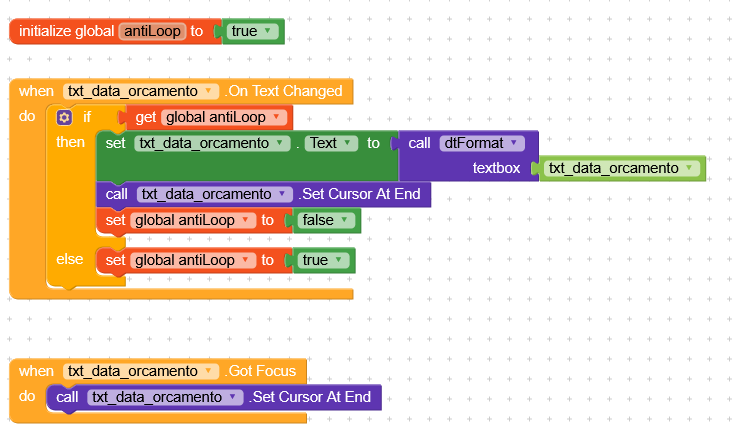
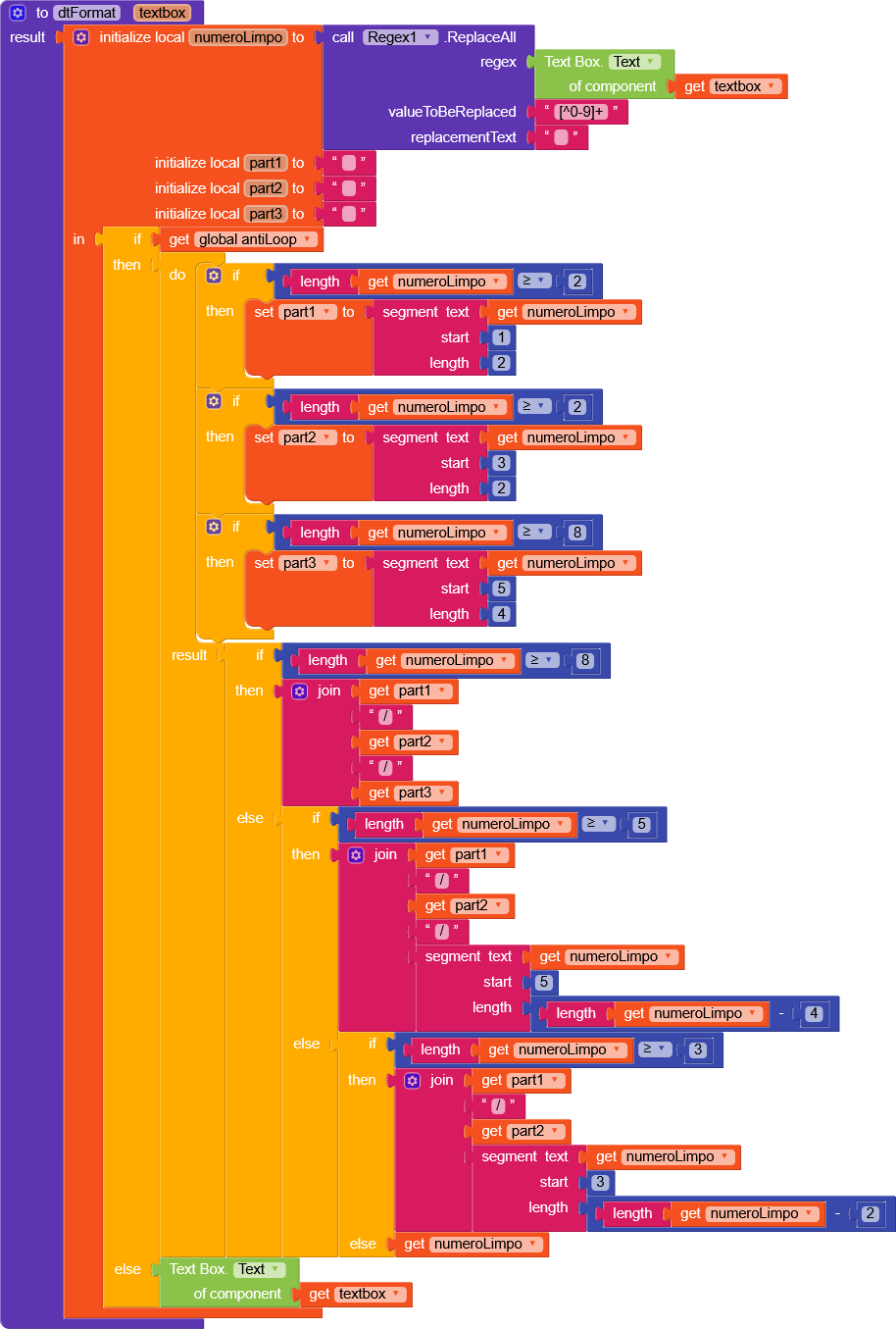
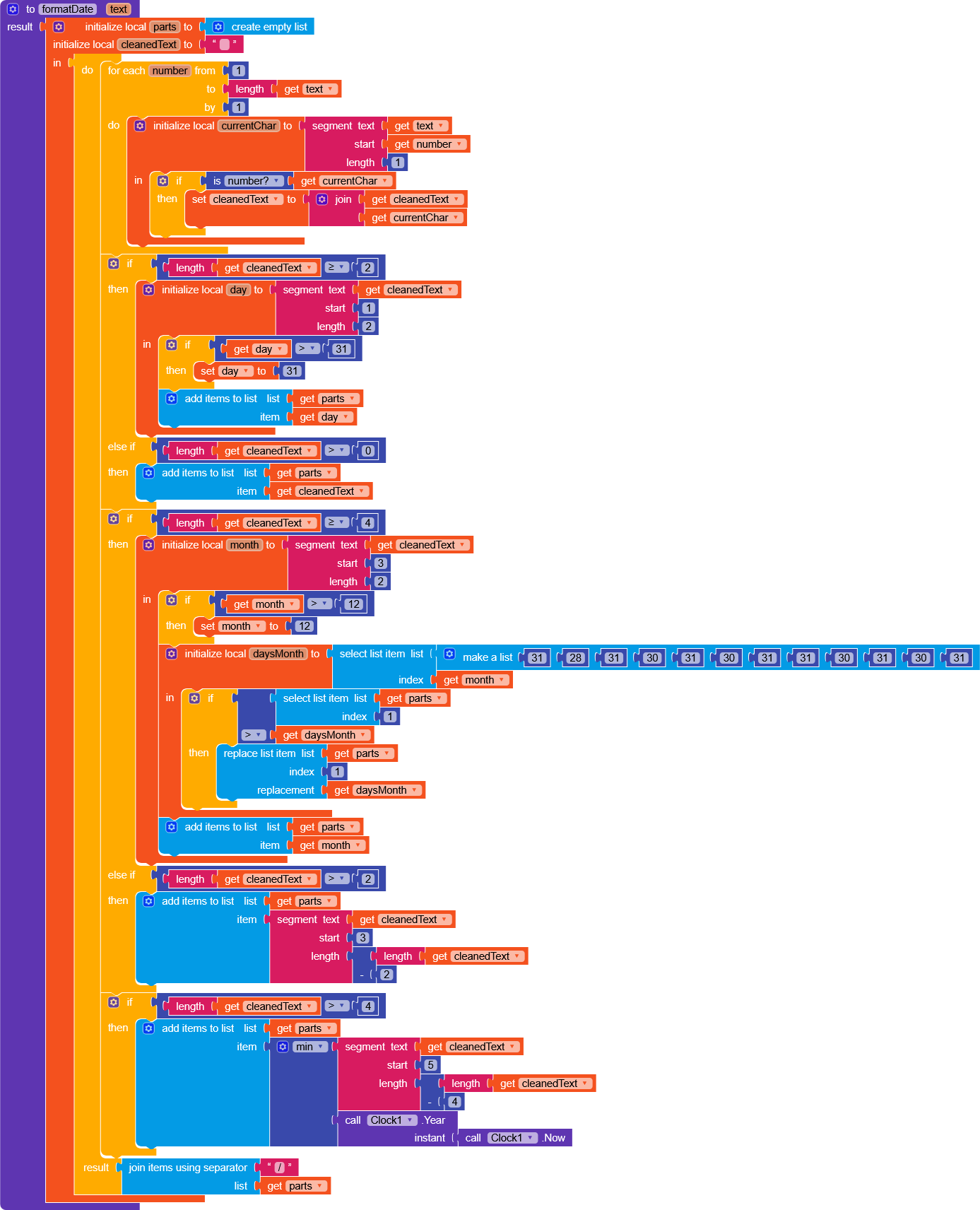
Here are the code blocks:
Hi,
Try to see if it works for you, but keep in mind that this function should be used after the date has been fully entered, otherwise it will autofill with today’s date.
The only thing I didn’t like was having to type dots or dashes between the digits—like 10.07.2026 instead of 10072026. Is there a way to remove them?
Could you first explain clearly what final result you want to achieve?
Do you want to type 10072026 and get an instant date?
Because if you’re sure it’s always written in this format, you just need to segment the text into three parts [1–2, 3–4, 5–8].
Or, if I have to answer strictly based on what you wrote here
you can simply use replace.
I want the separators (slashes) for the day, month, and year to appear as soon as the user starts typing. That’s why I’m using the “on text changed” event.
However, the date appears immediately when I start typing.
When I use “lost focus,” a completely different date shows up.
Based on what you demonstrated, the user has to type a dot, a dash, or an apostrophe (. - ') between the digits.
I recorded a video demonstrating the use of On Text Changed and Lost Focus.
If I use Lost Focus, the user types “11072026” and the formatting is applied upon exiting the field.
Alternatively, with On Text Changed, the slashes are added as the user types.
Here are the videos.
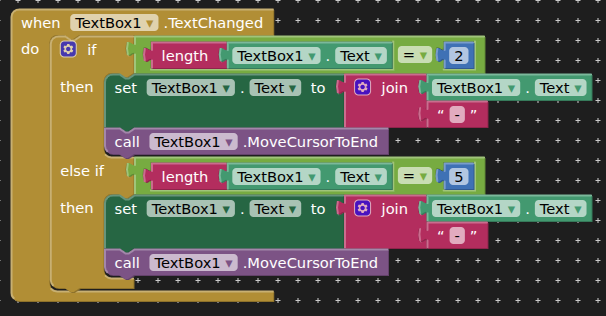
Requires user to enter date and month as 2 digit format (e.g. 03 or 11) and to enter date as day-month-year
(erm, I did this with AppInventor)
1 Like
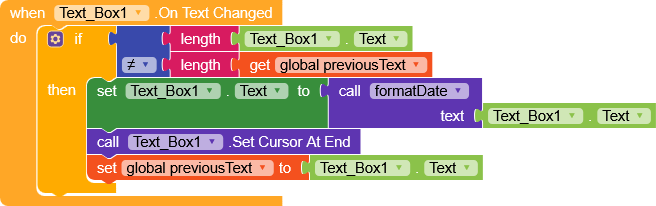
More complicated, but this also formats pasted dates and also allows the date to be cleared manually.

1 Like
Great!
Thank you!