NexGemini — Kodular Community Documentation
Hi, This new Kodular/MIT App Inventor Extension is a very simple way to connect Gemini API to your app projects to let your app support Gemini AI inside the application. For now, the extension supports text only.
Installation: Place the NexGemini.aix extension into your Kodular project via the Extensions > Import extension (.aix) option.
Permissions: The extension requires the INTERNET permission to call the Gemini API. Kodular will add this automatically when you call network APIs.
Quick Setup
- Add the extension to your project.
- Set your Gemini API key using the
ApiKeyproperty before callingGetResponse- in the properties panel ( the panel on the right in design mode when you add the extension to the screen). - Use
GetResponse(prompt)to send prompts; handle theGotMessageResponseandErrorOccurredevents.
Blocks Reference
Here are the blocks and their functions :
Set API Key :
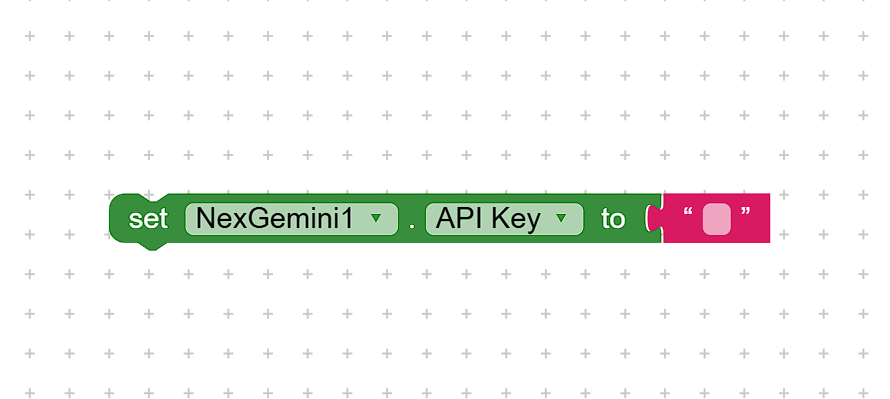
Set - ApiKey - to(Property — Set): Set your Gemini API key (String).- Purpose: Authentication for requests to Google’s Gemini REST endpoint.
- Usage: Call once during app startup (or when the user enters an API key, if your app uses custom user added API key).
- Example: Set
ApiKeytoYOUR_API_KEY_HERE.
Get API Key :
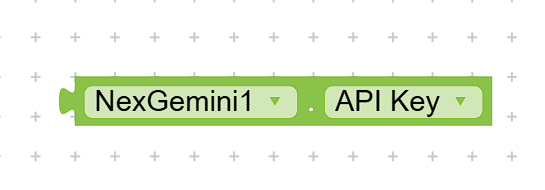
ApiKey(Property — Get): Returns the currently set API key (String).- Note: For security, avoid hardcoding production keys inside the app.
Set and Get Gemini AI Model :
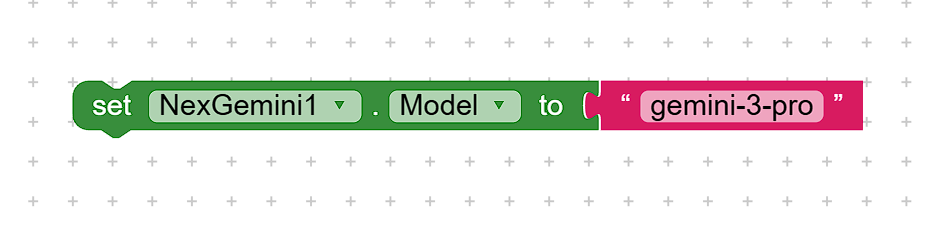
Model(Property — Set): Set the Gemini model to use (String).- Default:
gemini-3-flash-preview(unless changed in the extension source). - Usage: Use to switch models if you have access to multiple models.
- Default:
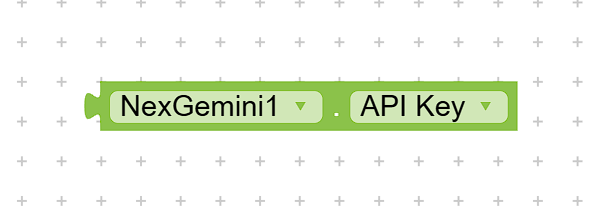
Model(Property — Get): Returns the active model string.
⠀
⠀
Send Messege to Gemini (Get Response) :
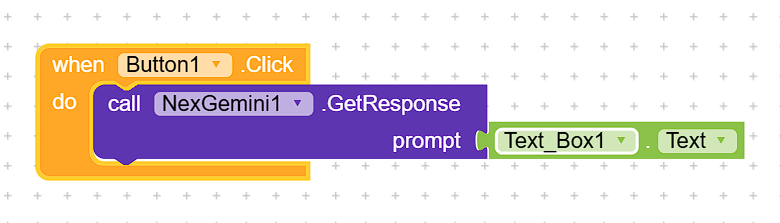
GetResponse(prompt)(Function)- Parameters:
prompt(String) — the user prompt to send to Gemini. - Behavior: Asynchronous call. The extension performs an HTTP POST to the Gemini REST endpoint and parses the returned text.
- Returns: Nothing directly. Results are delivered via the
GotMessageResponseevent, orErrorOccurredon failure. - Notes:
- Always ensure
ApiKeyis set before calling this function. - The function runs on a background thread; UI blocks remain responsive.
- Always ensure
- Example block sequence:
- Set
ApiKeyto user-provided key. - Call
GetResponsewith a prompt string. - In
GotMessageResponse, display theresponsein aLabelorNotifier.
- Set
- Parameters:
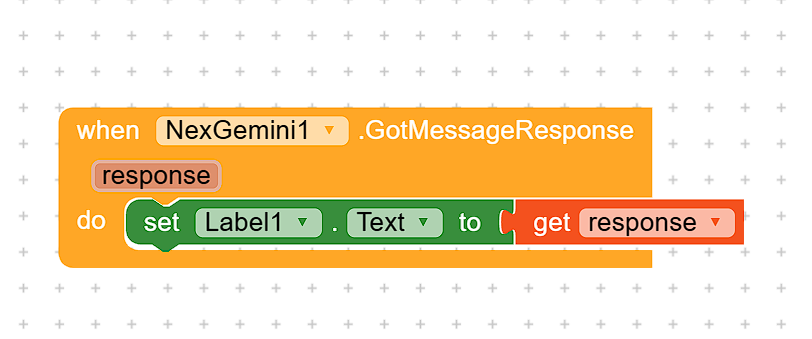
GotMessageResponse(response)(Event)- Triggered when the Gemini API returns text.
- Parameter:
response(String) — the text returned by the model. - Example:
When NexGemini.GotMessageResponse do set Label1.Text to response.

ErrorOccurred(errorMessage)(Event)- Triggered when any error occurs (network, parsing, or configuration).
- Parameter:
errorMessage(String) — diagnostic message. - Example: Show
errorMessagewith aNotifier.ShowAlertor log it for debugging.
Example Kodular Flow (step-by-step)
- Place
NexGeminiextension in the Designer. - Add a
TextBoxfor user prompt and aButtonto send. - Add a
Labelto show the AI’s response. - Blocks:
- On Screen.Initialize: set
NexGemini.ApiKeyto a stored key or blank until user inputs it. - On Button.Click: call
NexGemini.GetResponse(TextBox1.Text). - When
NexGemini.GotMessageResponse: setLabel1.Texttoresponse. - When
NexGemini.ErrorOccurred:Notifier.ShowAlert(errorMessage).
- On Screen.Initialize: set
Response Format
- The extension extracts the primary text from the Gemini response and supplies it via
GotMessageResponse. The returnedresponseis plain text.
Error Handling Recommendations
- Validate
promptis not empty before callingGetResponse. - Use
ErrorOccurredto surface issues to users and to retry or fallback gracefully. - Consider rate-limiting requests from the UI (debounce buttons) to avoid hitting API limits.
Known Compilation Issue & Workaround
Some Kodular projects may fail to compile when an extension bundles classes that collide with Kodular/App Inventor internal classes. If you experience a compile-time error mentioning conflicts with com.google.appinventor.components.annotations.DesignerComponent or similar, use one of the following approaches:

-
Recommended quick workaround: Append
-d8fixto your app’s Version Name in Kodular. Example: if your Version Name is2.0.0, change it to2.0.0-d8fix.- How to set in Kodular: Open Project Settings → Version Name → append
-d8fixand re-export. - Effect: Kodular’s builder applies an internal workaround to avoid the D8 conflicts and lets the app compile.
- Caveat:
-d8fixis a workaround and may have edge-case behavior in some projects; prefer removing conflicting classes when possible.
- How to set in Kodular: Open Project Settings → Version Name → append
-
Long-term fix: Ensure the extension package does NOT bundle App Inventor runtime/annotation classes. The extension should only include its own code and rely on Kodular’s built-in runtime. If you build the extension locally, remove any
annotations.jarorruntime.jarfrom the extensiondepsbefore packaging.
Security & Privacy
- API keys: Treat Gemini API keys as secrets. Do not hardcode production keys in public projects. Prefer providing keys via secure backend or user input.
- Data: Prompts and responses travel over HTTPS to Google’s Generative Language endpoint. Handle sensitive data according to best practices.
Support & Troubleshooting
- If
GotMessageResponseis not triggered:- Confirm
ApiKeyis set and valid. - Check network connectivity and that
INTERNETpermission is present. - Inspect
ErrorOccurredmessages for HTTP codes or parsing errors.
- Confirm
- If compilation fails with D8 conflicts:
- First try the
-d8fixVersion Name workaround. - If that is unacceptable, rebuild the extension without bundling App Inventor runtime/annotation JARs.
- First try the
DOWNLOADS
- Download the AIX FILE (EXTENSION) :
com.nex.gemini.ai.aix.platnumm.tech.nexgemini.aix (36.0 KB) - Download the Demo App :
TestAI.aia (64.9 KB)