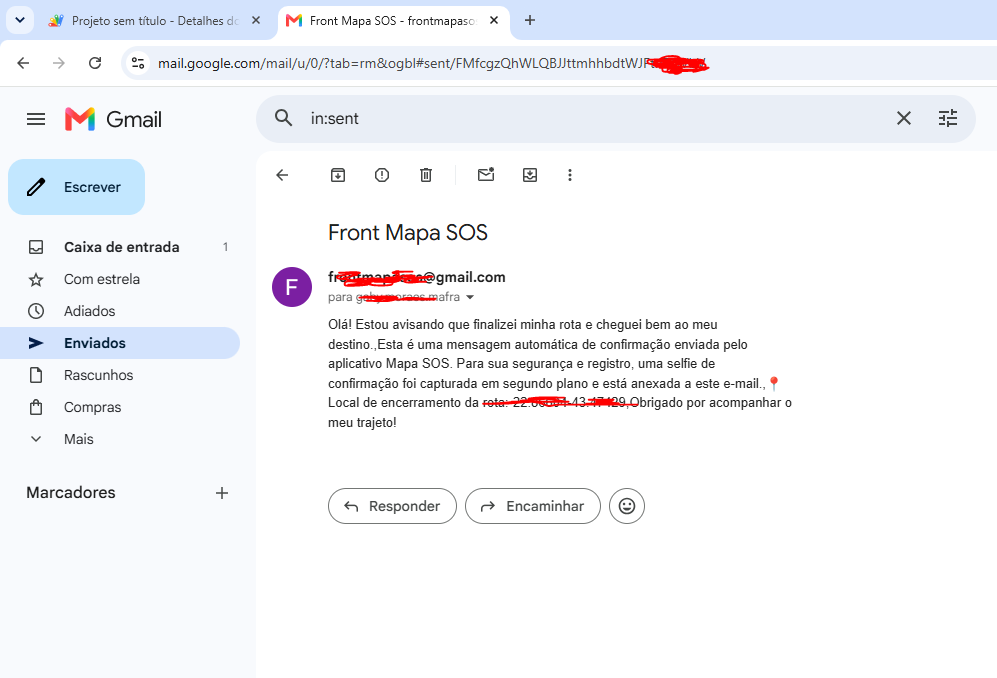
Hello, community! If you have ever tried to send emails directly from your app using SMTP components or outdated extensions, you probably noticed that Google often blocks the connection for security reasons or requires complex App Passwords setup that might expose your account details.
There is a 100% free, invisible (background), and highly robust alternative using Google Apps Script as a middleware mini-API. Your app silently triggers a Web request, and Google’s official servers deliver the email instantly using your standard Gmail daily quota.
Here is the complete step-by-step guide to implementing this and adapting it to any scenario in your project:
—  Step 1: Setting up the Free API on Google Drive
- Go to the Google Apps Script dashboard using your Gmail account.
- Click on New Project.
- Delete any default code in the editor and paste the snippet below:
javascript
function doGet(e) {
  // Captures the parameters sent from your app via the URL
  var para = e.parameter.para;
  var assunto = e.parameter.assunto;
  var mensagem = e.parameter.mensagem;

  try {
    // Sends the email securely and natively
    MailApp.sendEmail(para, assunto, mensagem);
    return ContentService.createTextOutput("Success");
  } catch(erro) {
    return ContentService.createTextOutput("Error: " + erro.toString());
  }
}
- In the top right corner, click on Deploy
 New deployment.
 - Click on the gear icon next to “Select type” and choose Web App.
- Set the configuration exactly as follows:
- Execute as: Me (your-email@gmail.com)
- Who has access: Anyone (This is mandatory so your app can reach the link from any device).
- Click Deploy. Google will prompt a security authorization window. Click on Advanced and then Go to Project (unsafe) to grant the initial emailing permissions.
- Copy the “Web app URL” generated (it ends with
/exec).
 Step 2: Configuring Blocks in Kodular
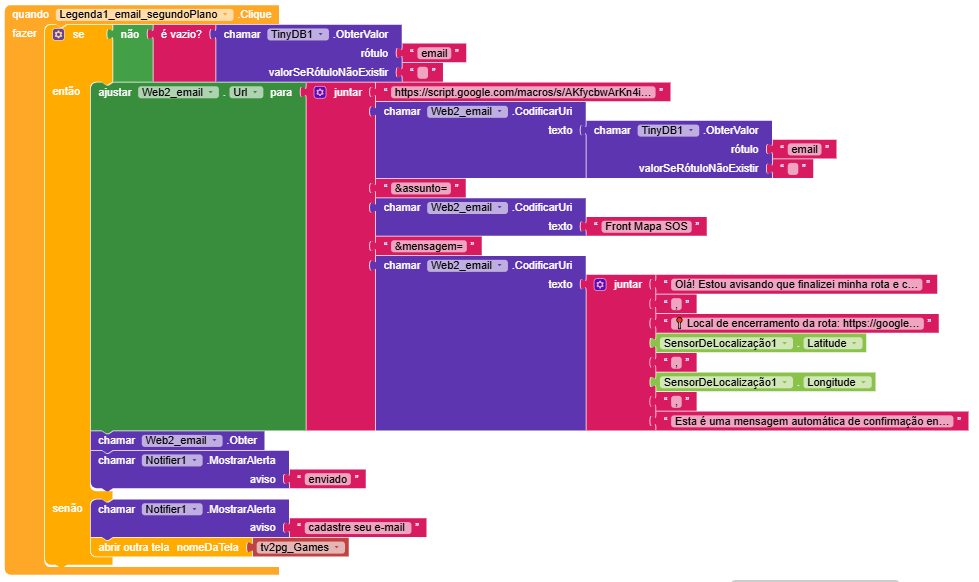
In the Designer panel, add a native Web component (found under the Connectivity tab). In the blocks editor, you can trigger this web request inside any event (such as a button click) by formatting the blocks like this:
- Set
Web1.Urlto:
- Use a
joinblock (configured with exactly 6 text input slots):"PASTE_YOUR_GOOGLE_SCRIPT_URL_HERE?para="(Note: make sure to append?para=right after the/execstring) Plug the Recipient Email Address here (it can be a fixed text block, a TextBox, or a value from TinyDB).
"&assunto="-
call Web1.UriEncode text: Plug your Email Subject here. "&mensagem="-
call Web1.UriEncode text: Plug your Email Message Body text here.
-
call Web1.Get(Place this purple action block right below the green URL assignment block to execute the transmission silently in the background)
 Why this is the best approach:
- Fully Invisible: The user experiences zero interface interruption or redirection. Everything runs completely in the background.
- Secure: You never expose your email account credentials inside the Android application source code or compiled APK.
- URL Protection: Utilizing the
UriEncodeblock automatically formats spaces and special characters so they don’t break the web query string parameters.
 Did this tutorial help you out?
If this guide saved you development time and successfully resolved your background emailing tasks, feel free to show some support to the creator:
 Support via PayPal Donation