Hi everyone,
Today I finished a project I’d had in mind for a long time.
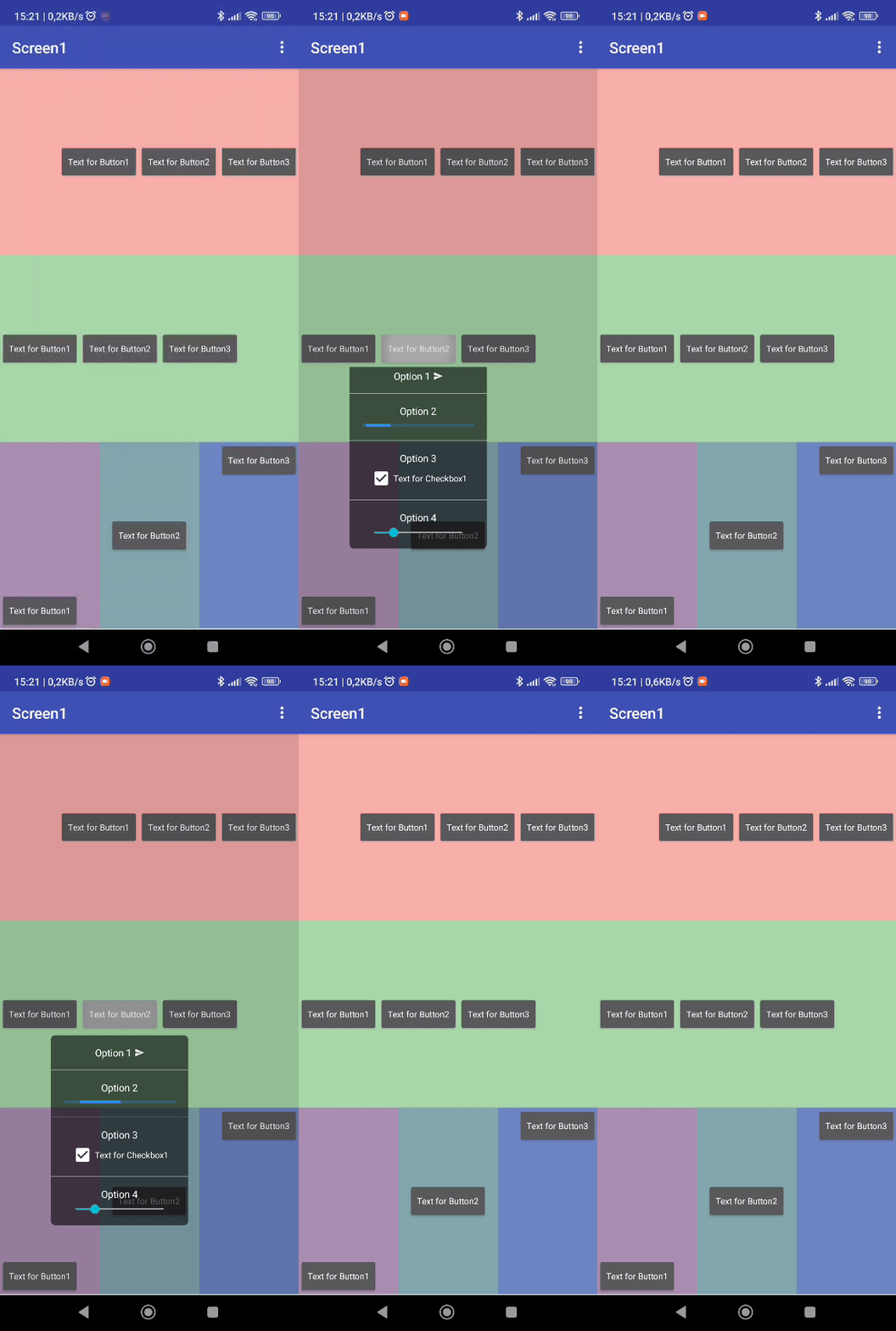
The idea is to display a PopUp / Contextual Action Menu next to any component.
I’d like to emphasize, as always, that since everything is created with native components, we’ll have maximum customization.
In fact, this menu will include a progress bar, checkboxes, and sliders (just to showcase its potential).
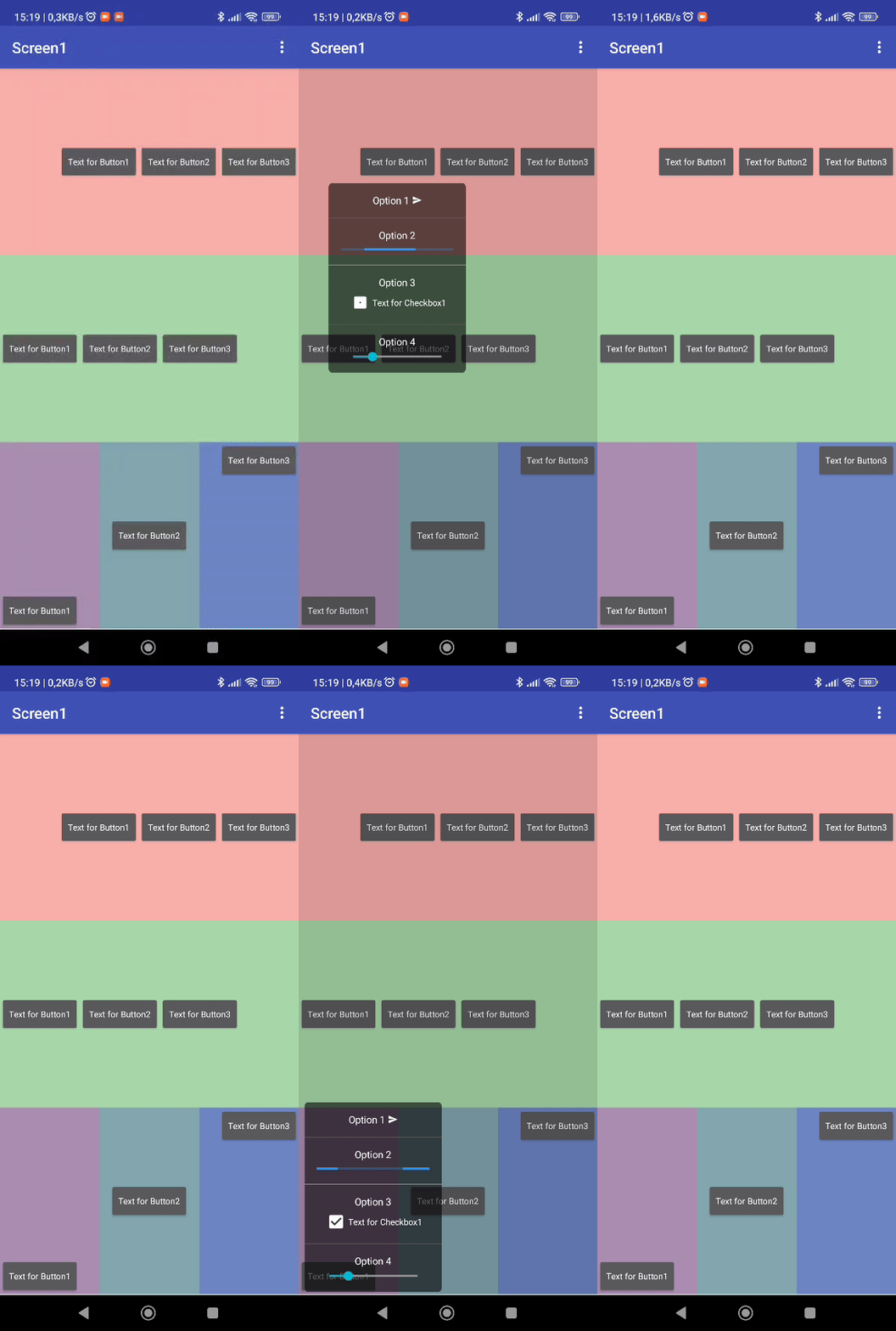
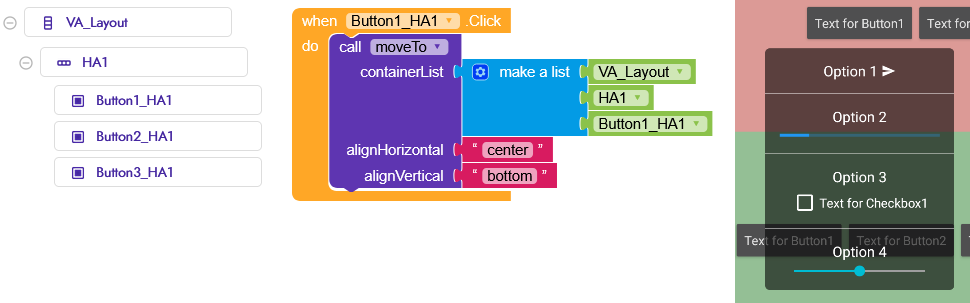
alignHorizontal=center, alignVertical=bottom
Now, you might say,
“But Gian, isn’t it enough to use Animation Utilities and move the menu layout to the XY position of the clicked component?”
Yes and no  , as long as all components are arranged vertically within the same arrangement, it’s quite simple to do this.
However, once we start adding Horizontal Arrangements, Vertical Arrangements, or any other layout, things get more complicated.
The positions of components begin to be calculated relative to their container, making it difficult to locate.
Not accepting defeat, I decided to find a way to solve this problem, and here we are!
Let’s see what I came up with.
Layout
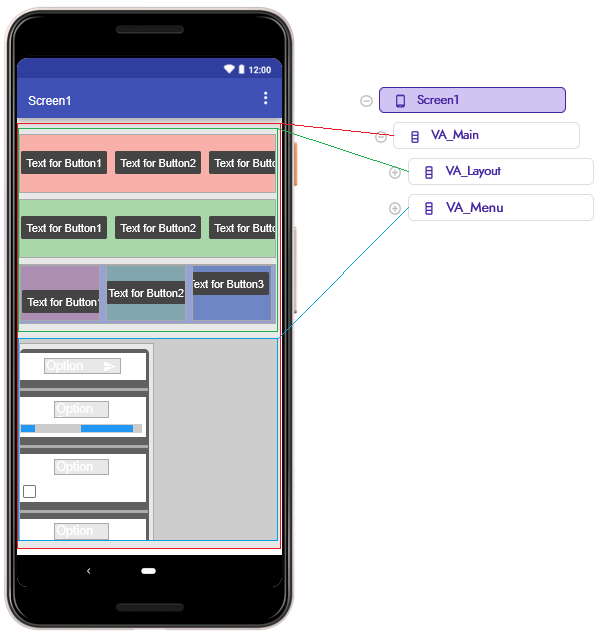
We’re going to overlap two layouts:
VA_Layout: which will contain our layout or virtual screens.VA_Menu: which will overlap VA_Layout and is where our menu will move freely.
VA_Main will contain these two layouts and will be used to find the coordinates of the screen edges.
Blocks
InitializeLayouts
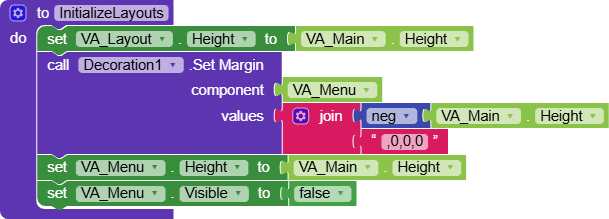
This function will initialize the layouts
- set
VA_Layoutto the height ofVA_Main - set
VA_Menuwith a negative margin equal to the height ofVA_Main - also set
VA_Menuto the height ofVA_Mainso it fully coversVA_Layout - and finally hide
VA_Menu
getCoordinatesDictionary
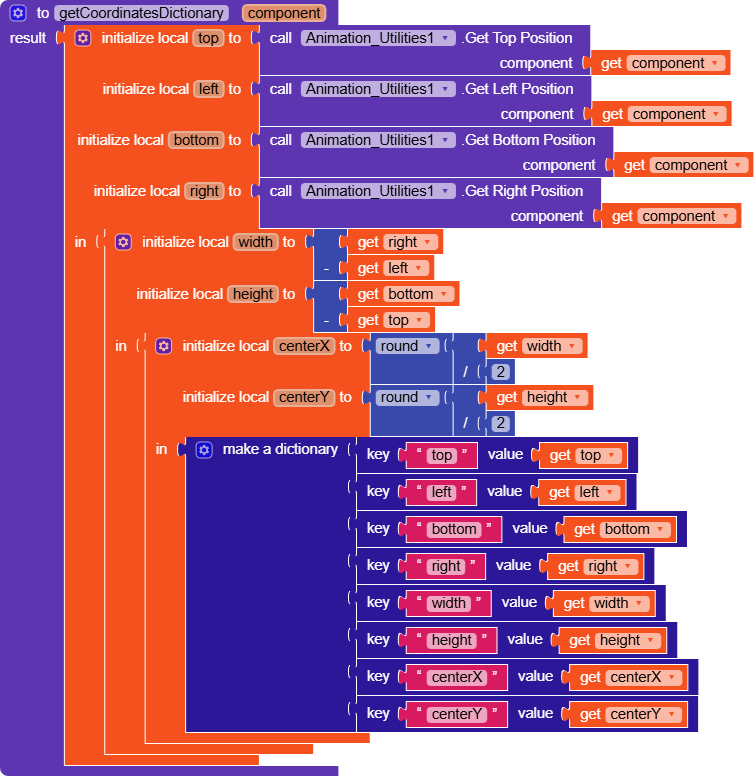
This function will help us obtain a clean dictionary of all the key information for the target where we need to show the dialog, top, left, bottom, right, height, width, centerX, centerY.
It will receive the target component as a parameter and return all these values as a dictionary.
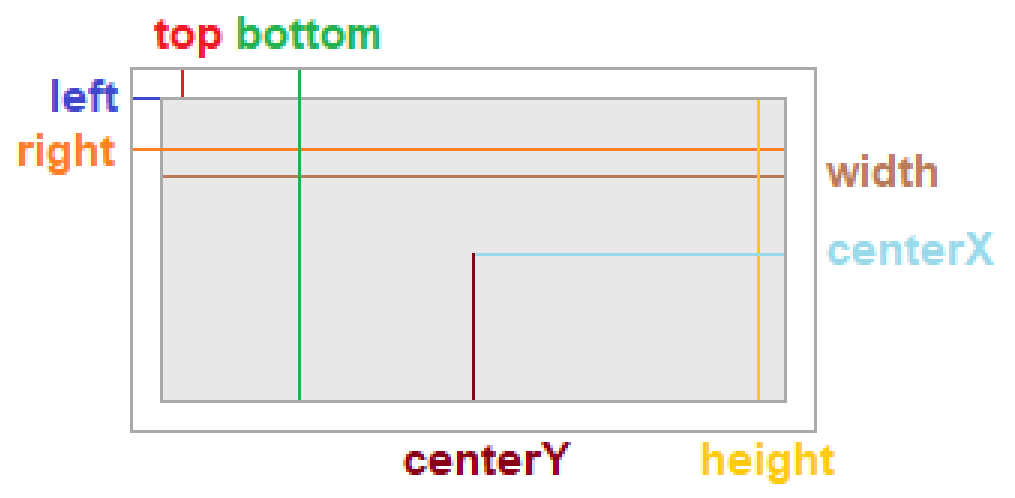
moveTo
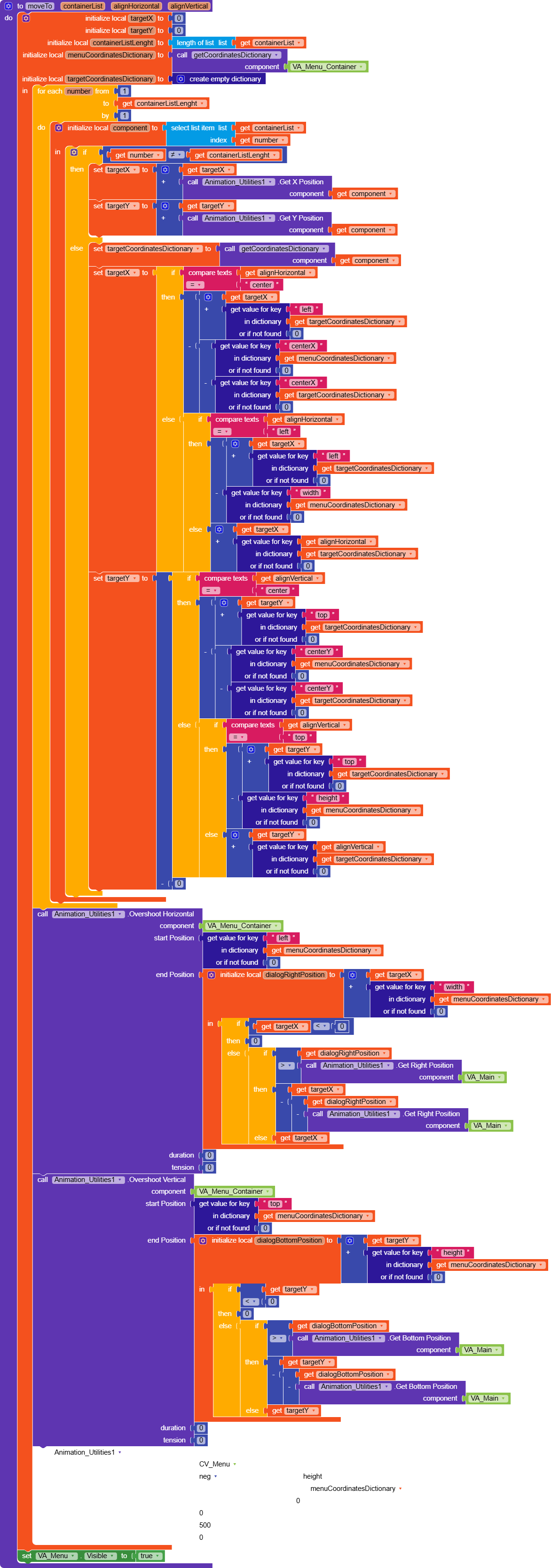
This is the function that will calculate the position of our CV_Menu.
It may seem complex, but once you understand how it works it will be very simple.
It will receive the following parameters:
-
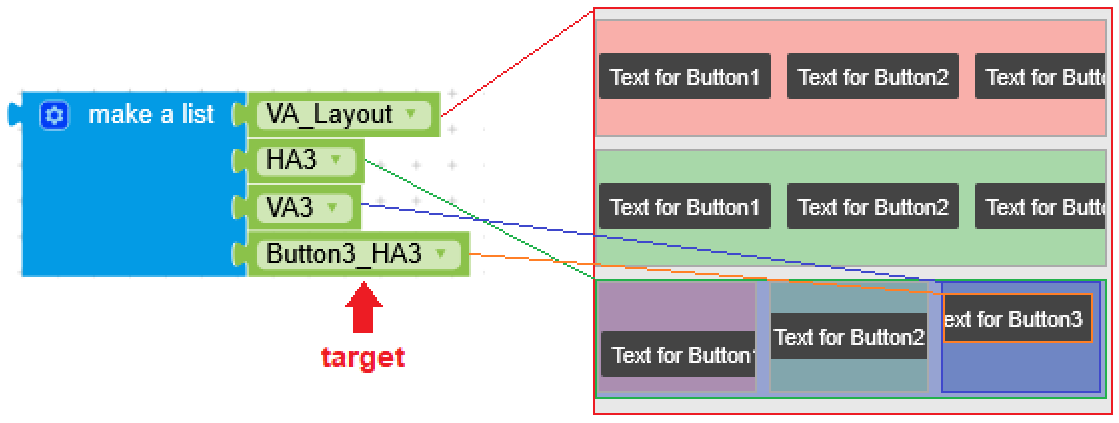
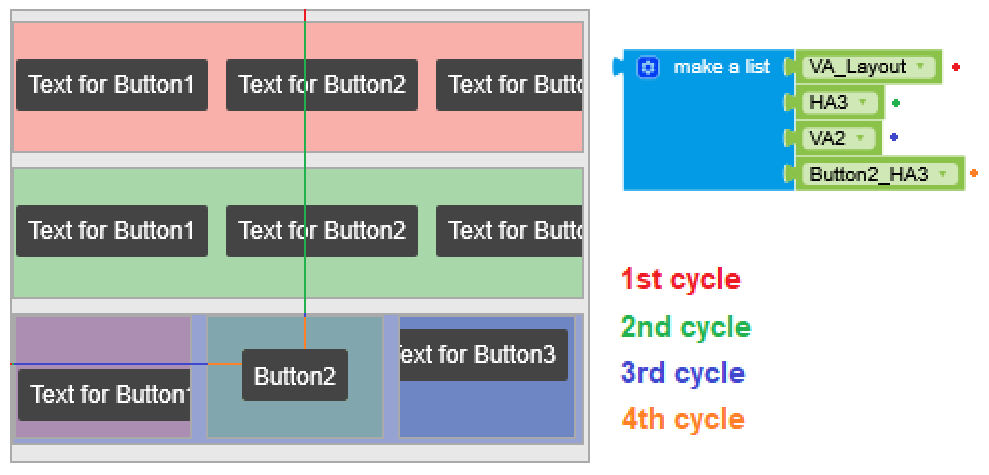
containerList: this parameter is very important and I want to explain it well.
As mentioned earlier:once we start adding Horizontal Arrangements, Vertical Arrangements, or any other layout, things get more complicated
 .
.
The positions of components begin to be calculated relative to their container, making it difficult to locate.This parameter will be a list of all the containers (Layouts) starting from the outermost one and going down to our
target.
-
alignHorizontal: acceptsleft,centerorrightand sets the menu’s horizontal alignment. -
alignVertical: same but for vertical alignment.
Inside the function we’ll create 5 variables:
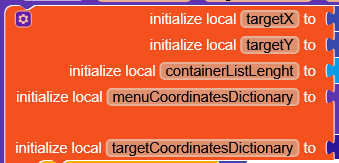
- The two target variables
targetXandtargetYwill represent the X and Y position of our target in this case one of the buttons, we will later see how to calculate them. containerListLength: simply the length ofcontainerListmenuCoordinatesDictionary: callsgetCoordinatesDictionaryto obtain the menu’s coordinates.targetCoordinatesDictionary: We will obtain them later.
Steps:
-
First we calculate the target’s position, to do this we loop through all layouts in
containerListwith afor each number. -
Create a variable
componentthat selects the layout from thecontainerList. -
On each iteration add the layout’s X and Y to
targetXandtargetYuntil we reach the final component, thetarget,
-
where we set
targetCoordinatesDictionarywith its info and based on thealignHorizontalandalignVerticalparameters we calculate different X and Y values.To avoid a wall of text I won’t explain every block, but I’m happy to go into detail if anyone’s interested, just ask.
-
Using
OvershootHorizontalandOvershootVerticalwe move the dialog totargetXandtargetY.why I didn’t simply set
endPositionto the correspondingtargetX/Yvariables?
if you select a button near the bottom, the menu would go off-screen.
The calculations prevent this by computing how much it would overflow and subtracting that from the target coordinates. -
Finally, set
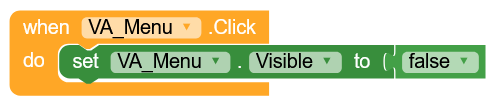
VA_Menuto visible.This layout will be clickable so that if the user clicks anywhere outside the menu, it will be hidden.
when Button1_HA1.Click
Here we will call our moveTo procedure with the parameters explained earlier.
When Any Button.Click
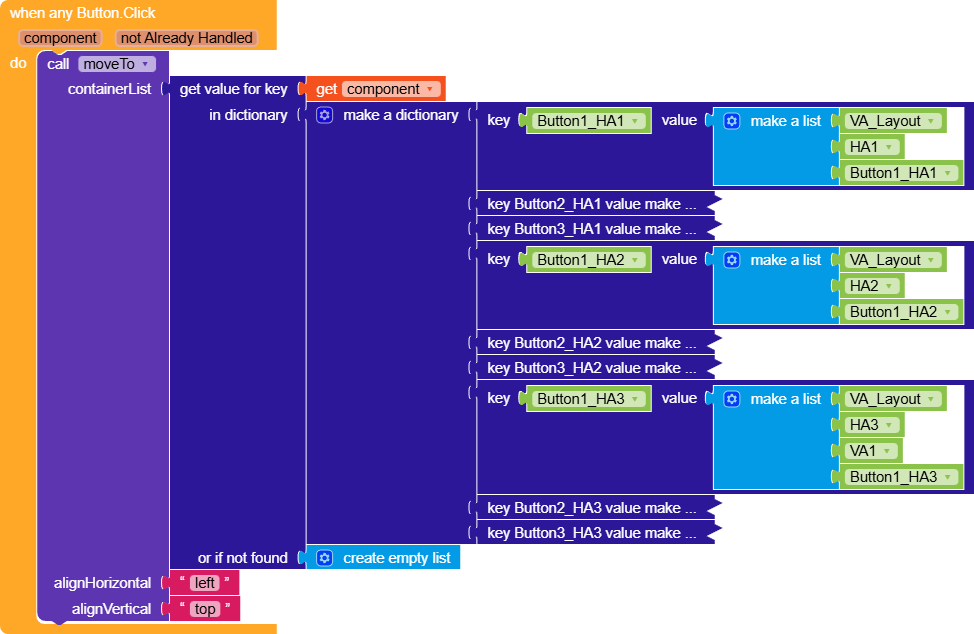
I also created an event for AnyButton in which I made a dictionary with
keys = button components
values = their `containerList`
Finish 
AIA
Bonus:
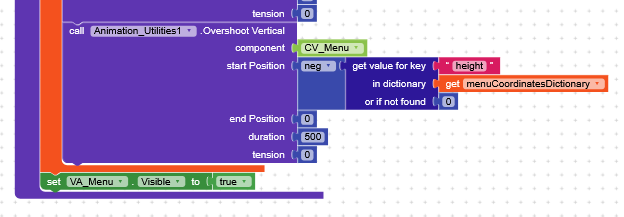
while I was making the final adjustments and exporting the AIA, I thought an animation would be nice to see.
So, you just need to enable this block inmoveTounder the overshoots animation
to get a slide-in effect from the top.
PopUpMenuPopUpContextualActionMenu.aia (14.2 KB)


