Developing extensions for MIT App Inventor (and distributions like Niotron or Kodular) just got a major upgrade. The FAST CLI GUI Tool provides a premium, user-friendly interface for the powerful FAST CLI, allowing you to create, edit, and build extensions without ever touching a terminal.
 Why Use FAST CLI GUI?
| Benefit | FAST CLI (Terminal) | FAST GUI (Tool) |
|---|---|---|
| Accessibility | Requires command knowledge | User-friendly “Point & Click” |
| Project Setup | Manual typing and folder creation | Interactive forms with auto-formatting |
| Code Editing | Requires external IDE | Built-in editor for rapid changes |
| Build Status | Hard to track stdout/stderr | Real-time Log Terminal with color coding |
| Automation | Manual environment setup | One-click “Zero-Config” setup |
 Interface Gallery
1. Main Dashboard
The control center of your extension development. Select projects, trigger builds, and monitor logs in real-time.
(Featured: Action buttons for Build, Clean, Sync, and Blocks Generator)
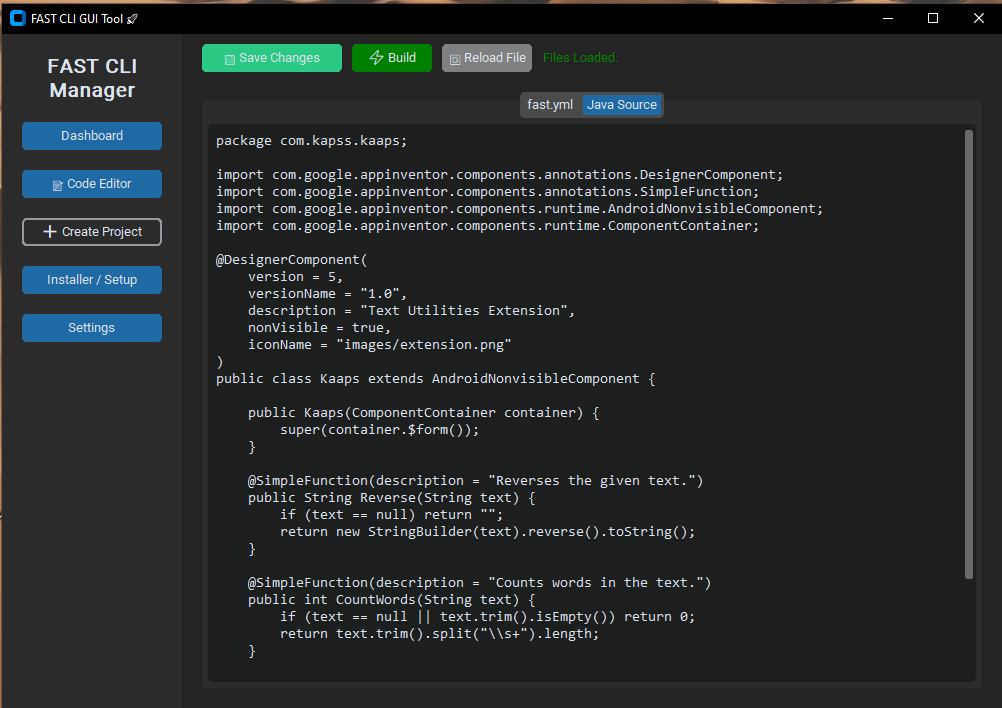
2. Integrated Code Editor
Directly modify your
fast.yml
configuration and Java source files without leaving the app.
(Featured: Tabbed interface with syntax highlighting and instant Save/Build buttons)
3. Smart Project Creator
Set up a professional extension structure in seconds. The tool automatically handles package formatting and directory structure.
(Featured: Configuration for Extension Name, Package, Author, and Language)
 Installation Guide (Windows)
The FAST GUI tool is “Zero Config.” It automatically handles dependencies if they are missing.
Step 1: Initialize
Download the package and locate the
FastGui folder.
Step 2: Run the Launch Script
Double-click
launch_gui.bat.
Note: On first run, the tool will automatically check for Python and FAST CLI. If they aren’t found, it will install them via
wingetand download the latest FAST CLI version (v5.4.0) for you.
Step 3: Start Building
Once the GUI opens, you are ready to go!
 Step-by-Step Usage
 1. Create Your First Project
Click the  Create Project button. Fill in your extension name (e.g.,
AdMobPro
) and package name. The tool will generate the boilerplate code automatically.
 2. Edit & Configure
Navigate to the Code Editor.
- Use the fast.yml tab to add your Maven dependencies (like Google Play Services).
- Use the Java Source tab to write your extension logic.
- Click Save Changes frequently.
 3. The Power Buttons
- Build Extension: Compiles your project into an
.aix
file ready for App Inventor.
- Sync Deps: Downloads all required libraries (JARs/AARs) from the internet.
- Gen Blocks: Automatically creates visual block documentation and images.
- Clean Build: Wipes the cache to solve any unexpected compile errors.
 Troubleshooting Pro-Tips
- Java Version: Ensure you have JDK 8 or higher installed for building.
- Path Errors: Avoid using spaces in your project folder paths for maximum compatibility.
- Sync First: If you add new dependencies to
fast.yml
always click Sync Deps before clicking Build.
 Download Now
FastGui V2.zip (6.7 KB)
Ready to revolutionize your extension development? Grab the tool and start building!