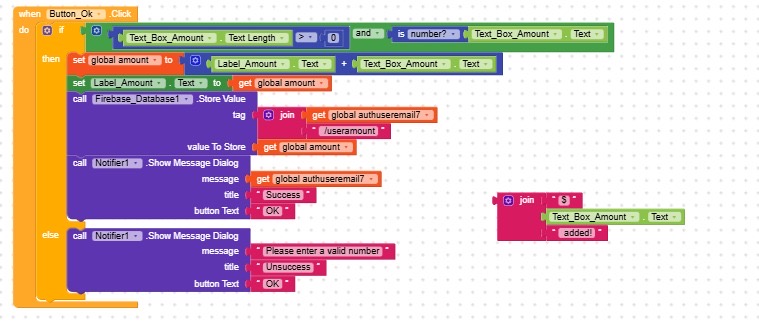
Be positive we’ve actually reached the most important step: finding the issue!
In all your login/signup/getUser success blocks, is that variable being set?
Or, to put it more simply, every time you receive the user’s email, you should save it immediately so it’s always available later.
So whenever In my login/signup/getUser success blocks, I need to use the firebase storevalue to store the user email?
If yes what is the tag of that?
For example in signup success block:
Tag: tbsignupemail Value: tbsignupemail ?
Thank you for your patience!!!
You just need to update the authUserEmail variable every time it’s received from a Login/Signup/CurrentUser Success event, that way, if the user switches accounts, the variable will always contain the email of the last account that logged in.
This was an old project of mine.
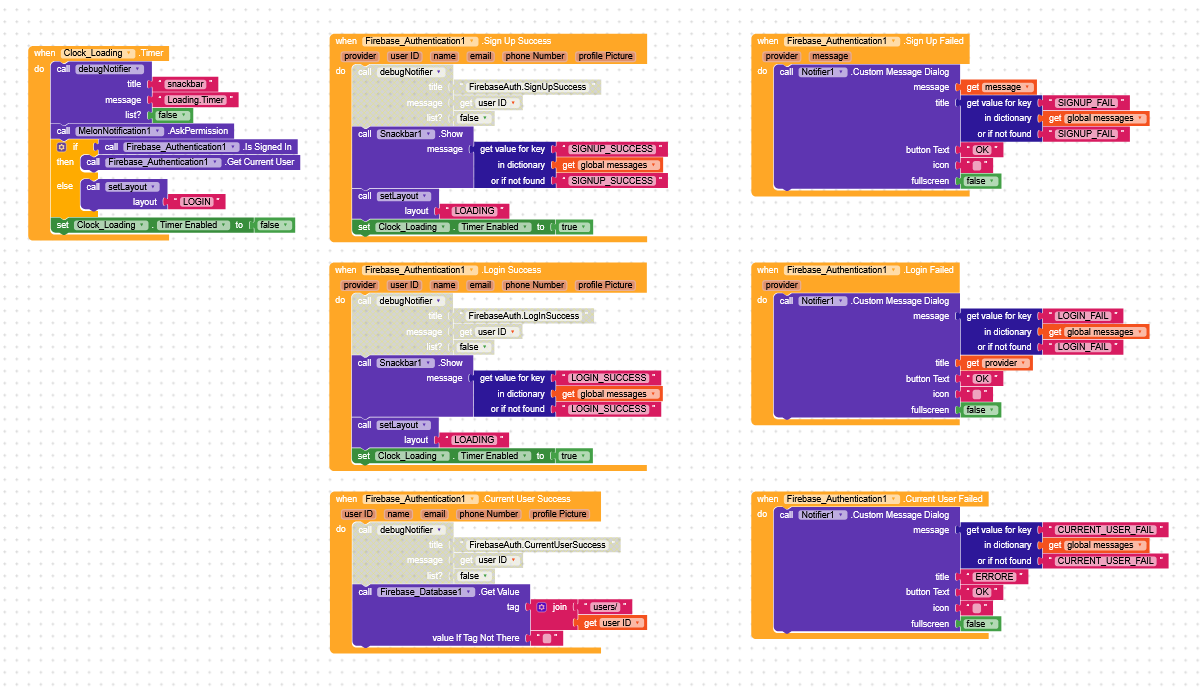
When the app initializes, you check if the user .IsSignedIn (I used to do this with a clock)
If they are, you run a GetCurrentUser.
If they’re not signed in, you show the login/signup screen.
Then, depending on whether the user is logging in or signing up, after the Login/Signup Success event, you call GetCurrentUser.
In CurrentUser.Success (I used it to fetch data from Firebase, like username and other info), this is where you should set the variable authUserEmail = email.
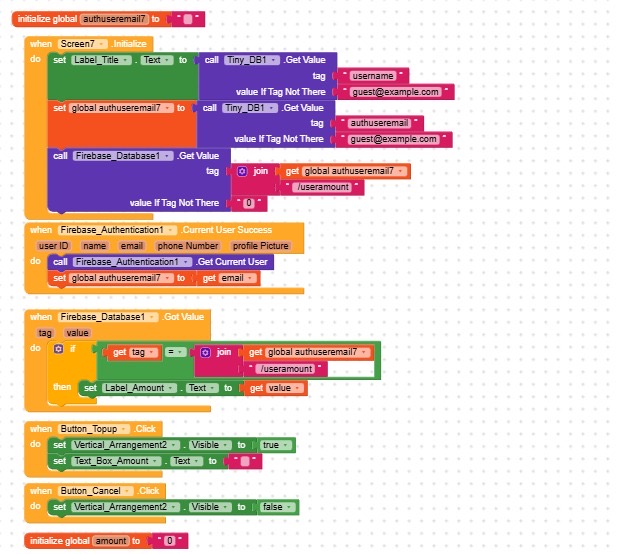
But the authuseremail is a global variable in screen7, the login signup page is in screen1, so I can’t update the authuseremail in screen1. How to deal with this problem?
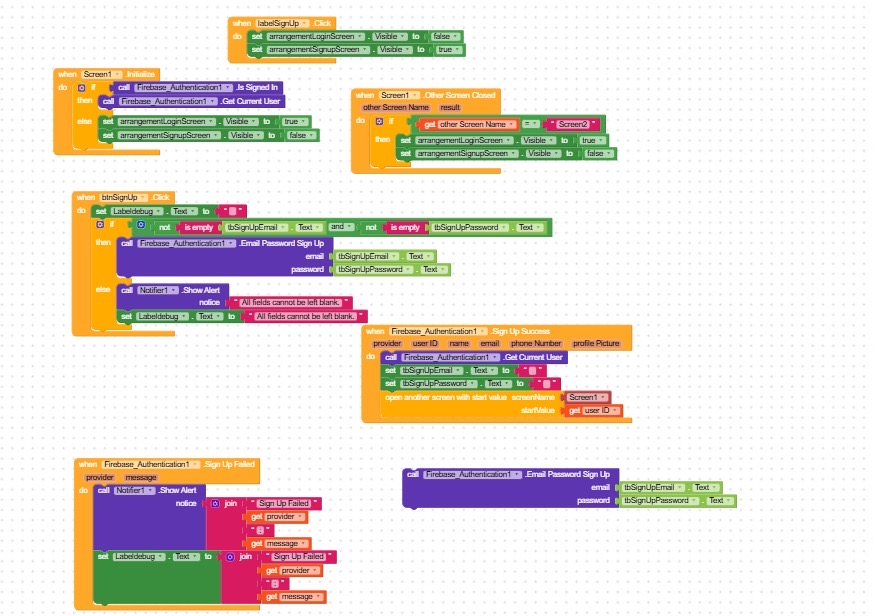
Because I never use a clock, can I use other method? For example can I copy your if then else block put in the when screen1 initalizes?
So I need to put the block get current user in sign up success and login success?
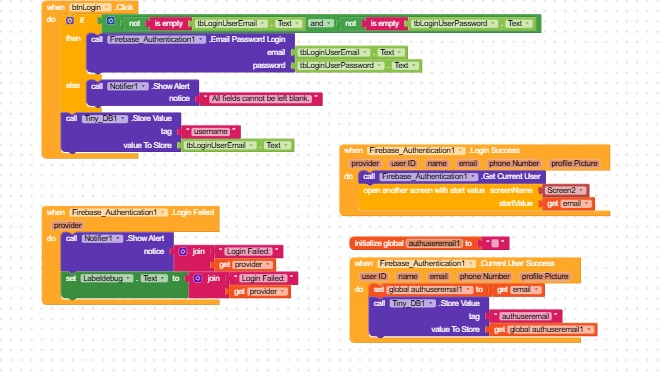
Then I need to put a when firebase current user success, call firebase database storevalue tag:authuseremail value:email
?
Yes, of course,
in your initialize, just check if the user is signed in.
If they are, you can go straight to another screen,
if not, have them sign up or log in.
The important thing is that after the success of either of those, you call getCurrentUser.
In CurrentUser.Success, save the email to the variable authUserEmail.
What is a virtual screen? Could that address the lag problem?
Also I have change the code, is the reason of my app lag is the virtual screen not the code?